Device Discovery & Control
Aria Studio automatically discovers and connects to Aria glasses when you plug them in via USB. This page covers how device discovery, connection, authentication, and multi-device management work.
For initial device setup (installing the SDK, authenticating your device for the first time, and configuring your PC) and device configuration (Wi-Fi, recording profiles, hotspot), use the Client SDK. See Client SDK Installation for setup instructions and Device Authentication for the first-time pairing flow.
Supported device generations
| Feature | Gen 1 | Gen 2 |
|---|---|---|
| Connection | USB via ADB | USB via Aria SDK |
| Discovery | Automatic (ADB polling) | Automatic (real-time detection) |
| Authentication | Not required | Certificate-based pairing via Companion App |
| Recording control | Not supported | Supported |
| Live streaming | Not supported | Supported |
Connecting your glasses
Gen 1 glasses
- Install ADB (Android Debug Bridge) and ensure it's on your system PATH.
- Connect your Gen 1 glasses to your computer via USB.
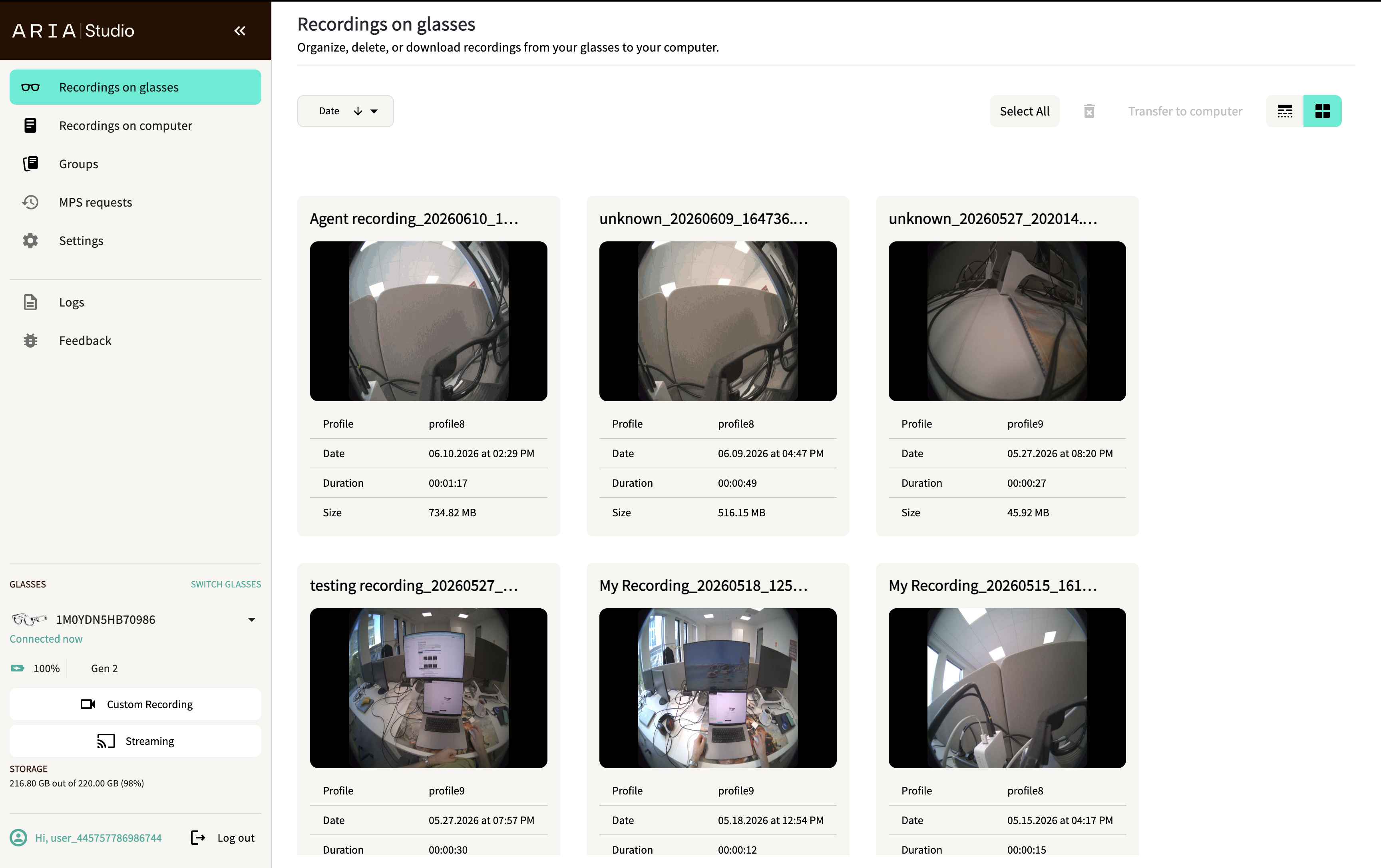
- Aria Studio automatically detects the device. It appears in the sidebar Glasses panel.
Gen 1 devices are automatically identified by ADB and are always treated as authenticated — no additional pairing step is needed.
Gen 2 glasses
- Connect your Gen 2 glasses to your computer via USB.
- Aria Studio discovers the device automatically.
- If this is the first time connecting this device, you'll need to authenticate it.
How device discovery works
Gen 1 discovery
Aria Studio periodically polls adb devices to detect connected Gen 1 glasses. When a device appears or disappears, the UI updates automatically.
Gen 2 discovery
Gen 2 devices are discovered through two mechanisms that work together:
- Active scanning — On each refresh, Aria Studio scans for Gen 2 devices on the USB network.
- Real-time notifications — The system pushes instant updates when a device is plugged in, unplugged, or changes connection state.
This dual approach means Gen 2 devices typically appear in the UI within seconds of being connected. The sidebar and device selection dialog update automatically — no manual refresh is needed.
Multi-device support
Aria Studio supports multiple connected devices simultaneously. While all devices stay connected, only one is the active (selected) device at any time. All operations (recording, streaming, importing) act on the selected device.
Switching between devices
- Open the Switch to other glasses dialog from the sidebar.
- All discovered devices are listed, separated by generation:
- Gen 2 Glasses — Each shows a radio button and serial number. Unauthenticated devices display an Authenticate link.
- Gen 1 Glasses — Each shows a radio button and serial number (always authenticated).
- Select the device you want to use.
- Select Continue.
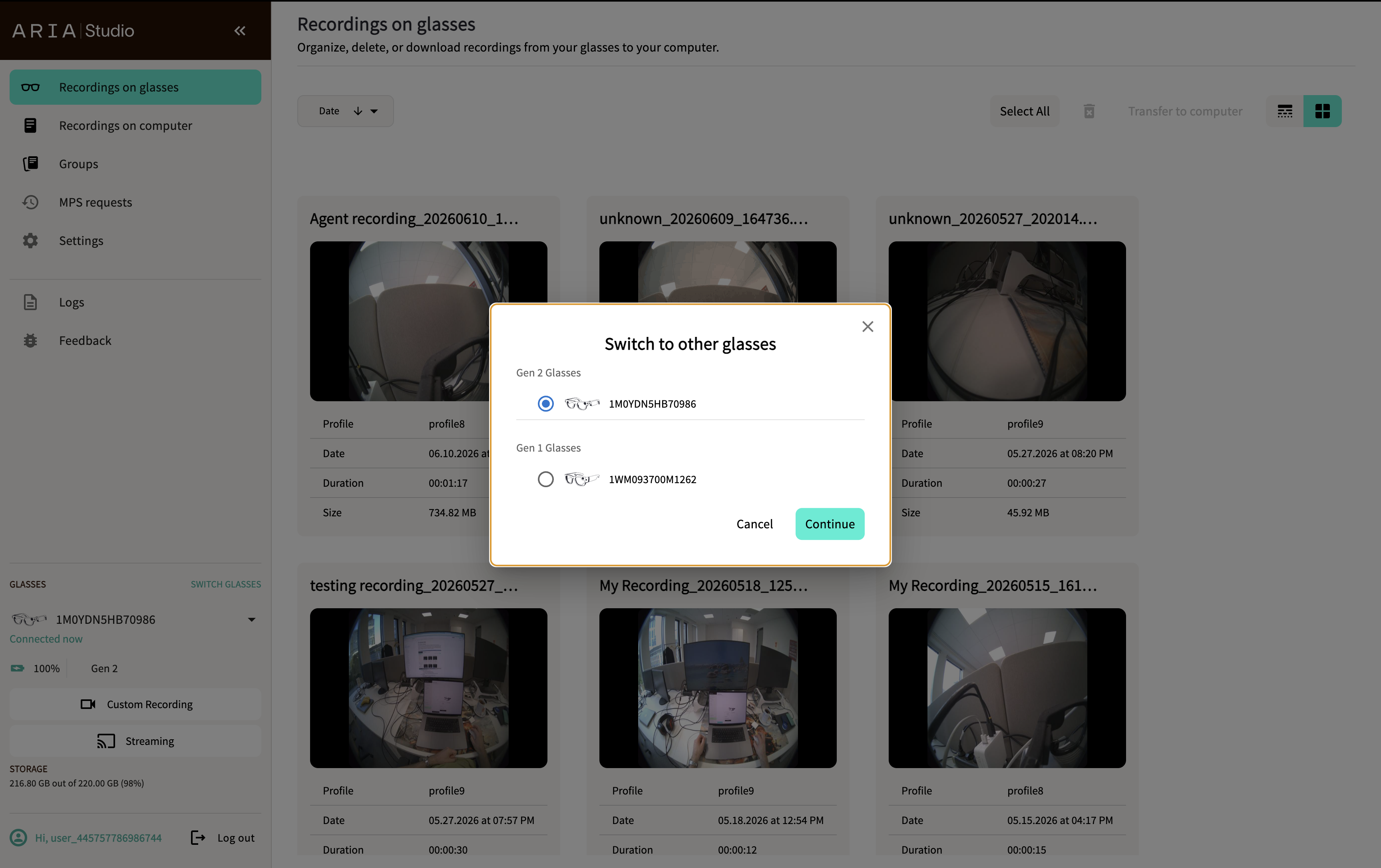
The dialog polls for device changes every 2 seconds while open, so newly connected or disconnected devices appear automatically.
The Continue button is disabled if the selected device is not authenticated. Authenticate it first, then select it.
Auto-selection
When no device is selected and one or more devices are connected, Aria Studio automatically selects a device using this priority:
- Authenticated Gen 2 device (preferred)
- Gen 1 device (always authenticated)
- First available device of any type
Authenticating Gen 2 devices
Gen 2 devices use certificate-based pairing for security. The first time you connect a Gen 2 device to a computer, you need to approve the connection in the Companion App.
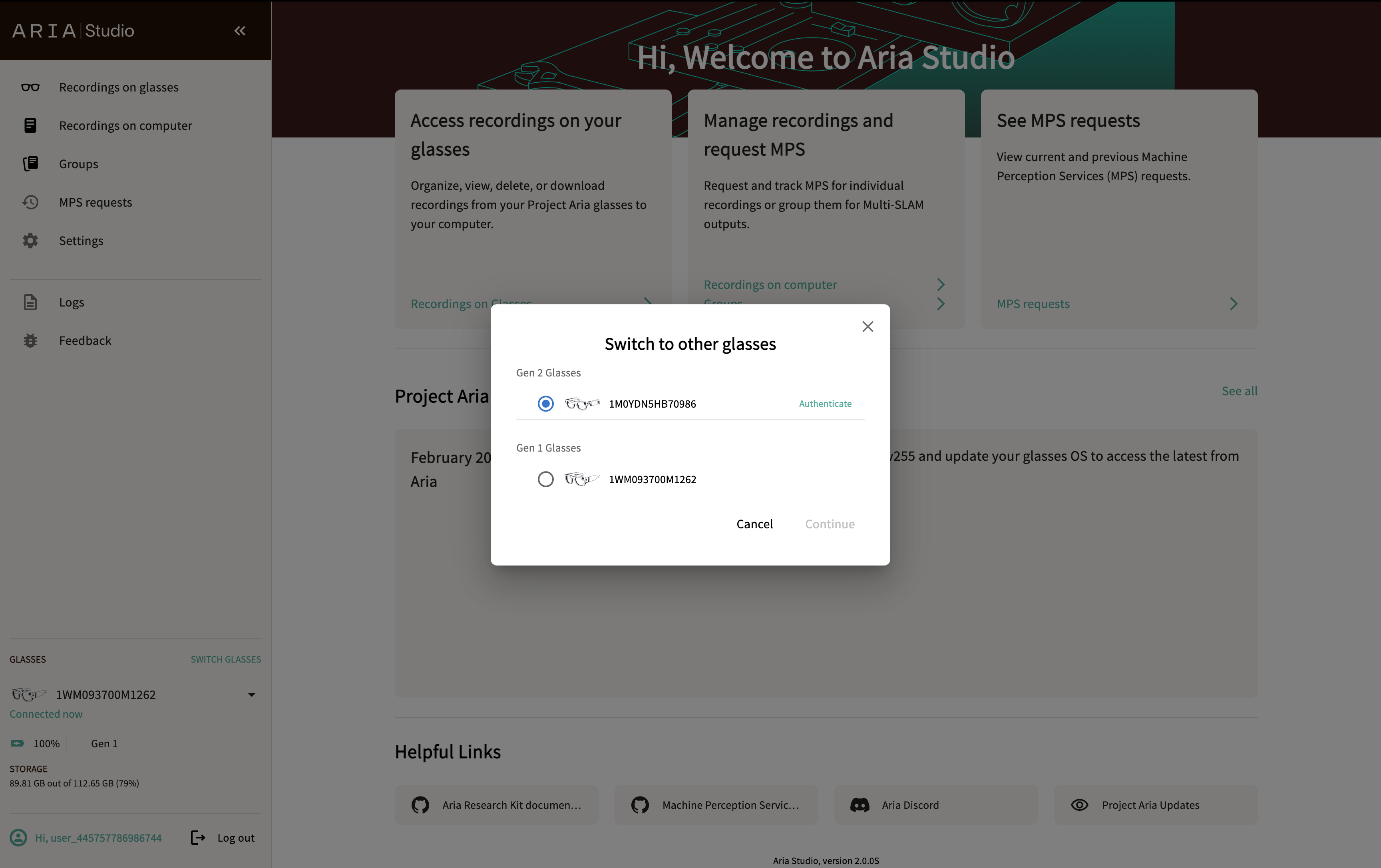
In the Switch to other glasses dialog, an unauthenticated Gen 2 device appears with an Authenticate link — this is your starting point.
Step by step
- Connect your Gen 2 glasses via USB.
- The device appears in the Switch to other glasses dialog with an Authenticate link.
- Select Authenticate — an authentication dialog opens with a spinner.
- Aria Studio initiates certificate pairing with the glasses.
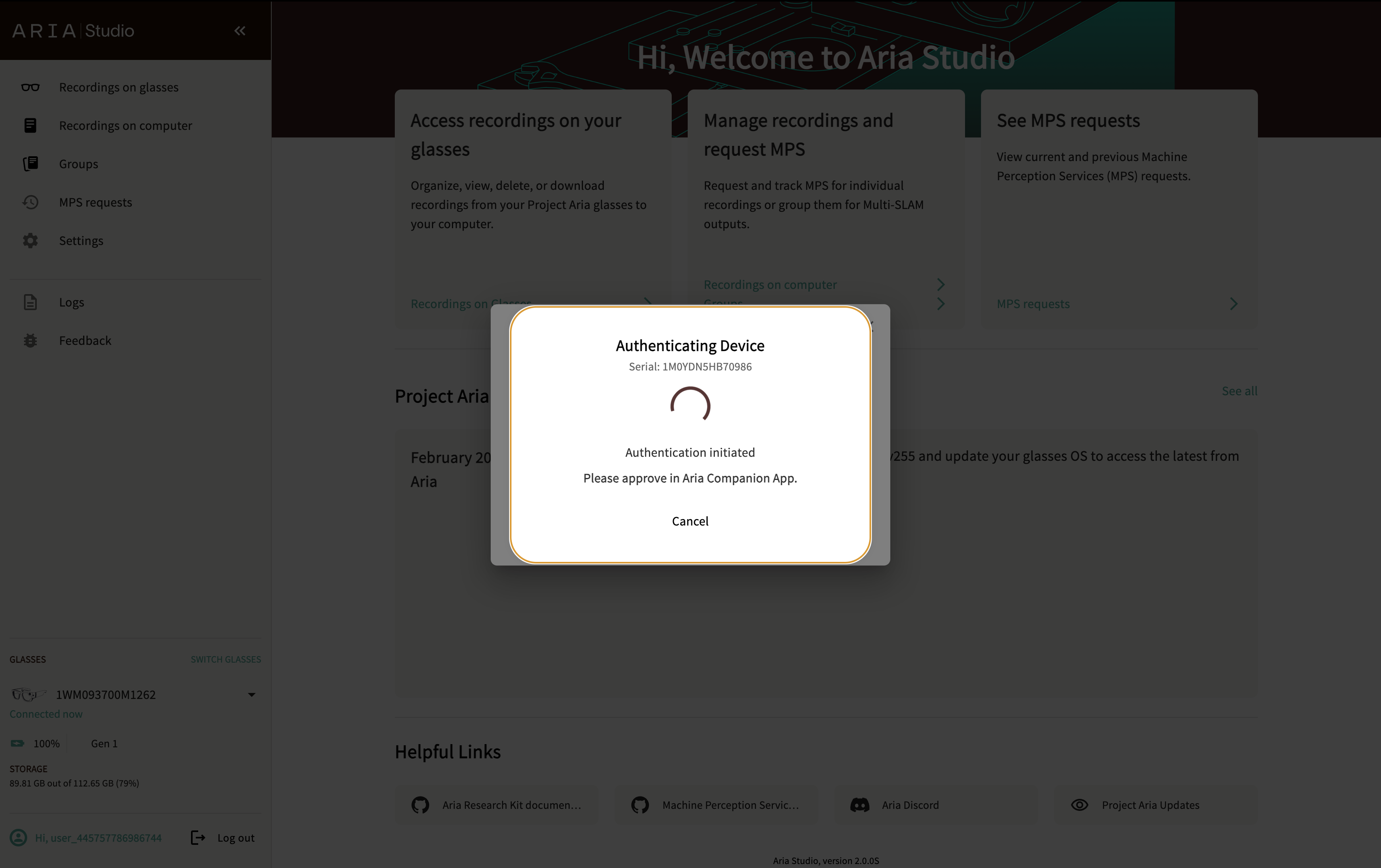
- Open the Aria Companion App on your phone. A pairing request will appear.
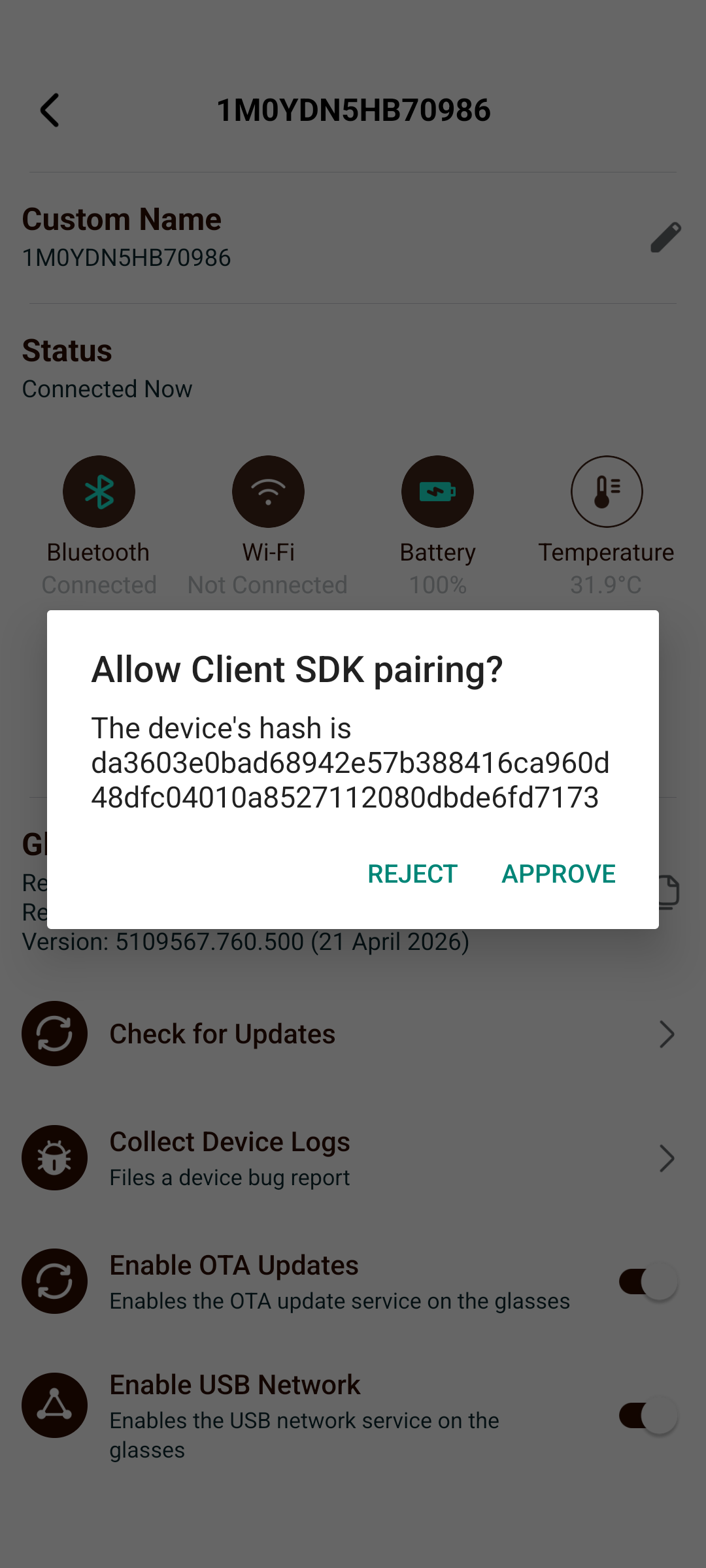
- Approve the pairing in the Companion App.
- Aria Studio detects the approval and shows a green checkmark with "Authenticated successfully."
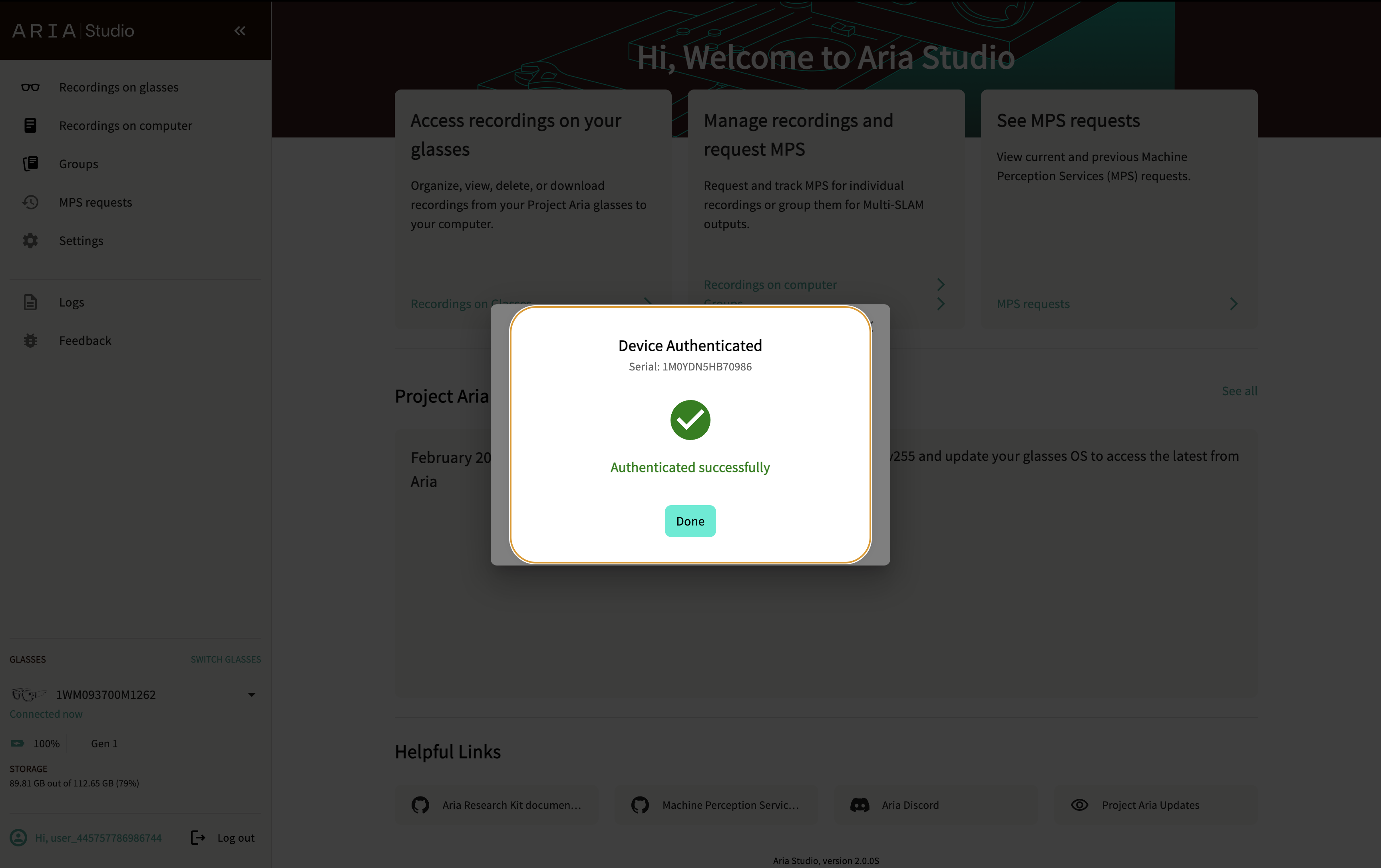
- Select Done — the device is now selected and ready to use.
If authentication fails (rejected or timed out), select Try Again to restart the pairing flow. You can also select Cancel to dismiss the dialog.
Once authenticated, the certificate persists across sessions — you won't need to re-authenticate this device on this computer again unless the certificate is revoked.
Device status
The sidebar Glasses panel shows real-time status for the selected device:
| Field | Description |
|---|---|
| Serial number | Device identifier |
| Battery | Current battery level (0–100%) |
| Wi-Fi | Connected network name, or "Not connected" |
| Storage | Available and total storage space |
Gen 2 additional status
For Gen 2 devices, the sidebar also shows:
| Field | Description |
|---|---|
| Recording status | Whether a recording is in progress, with elapsed time |
| Streaming status | Whether a live stream is active, with elapsed time |
Recording and streaming controls
The Glasses panel includes action buttons for Gen 2 devices:
- Custom Recording — Navigate to the New Recording page to start a custom recording session.
- Streaming — Navigate to the Live Streaming page to stream live sensor data.
Disconnection handling
When a device is unplugged:
- The device disappears from the sidebar and Switch to other glasses dialog.
- If it was the selected device, the selection is cleared.
- If another device is still connected, Aria Studio auto-selects it.
- Any in-progress imports from that device are interrupted (but can be retried after reconnecting).
When a device is plugged back in, it's rediscovered automatically. If it was previously authenticated, it reconnects without needing re-authentication.
Device configuration
Aria Studio handles device discovery and connection, but device configuration is managed through the Client SDK. Use the Client SDK CLI to:
- Set up your PC — Run
aria_doctorto configure ports and USB networking for device communication. - Connect to Wi-Fi — Use
aria_gen2 device wifi connectto connect the device to a wireless network.
See the CLI Quick Reference for a full command overview.
Next steps
Troubleshooting
For device management issues and solutions, see Aria Studio Troubleshooting.