Live Streaming
Live streaming is only available with Aria Gen 2 glasses.
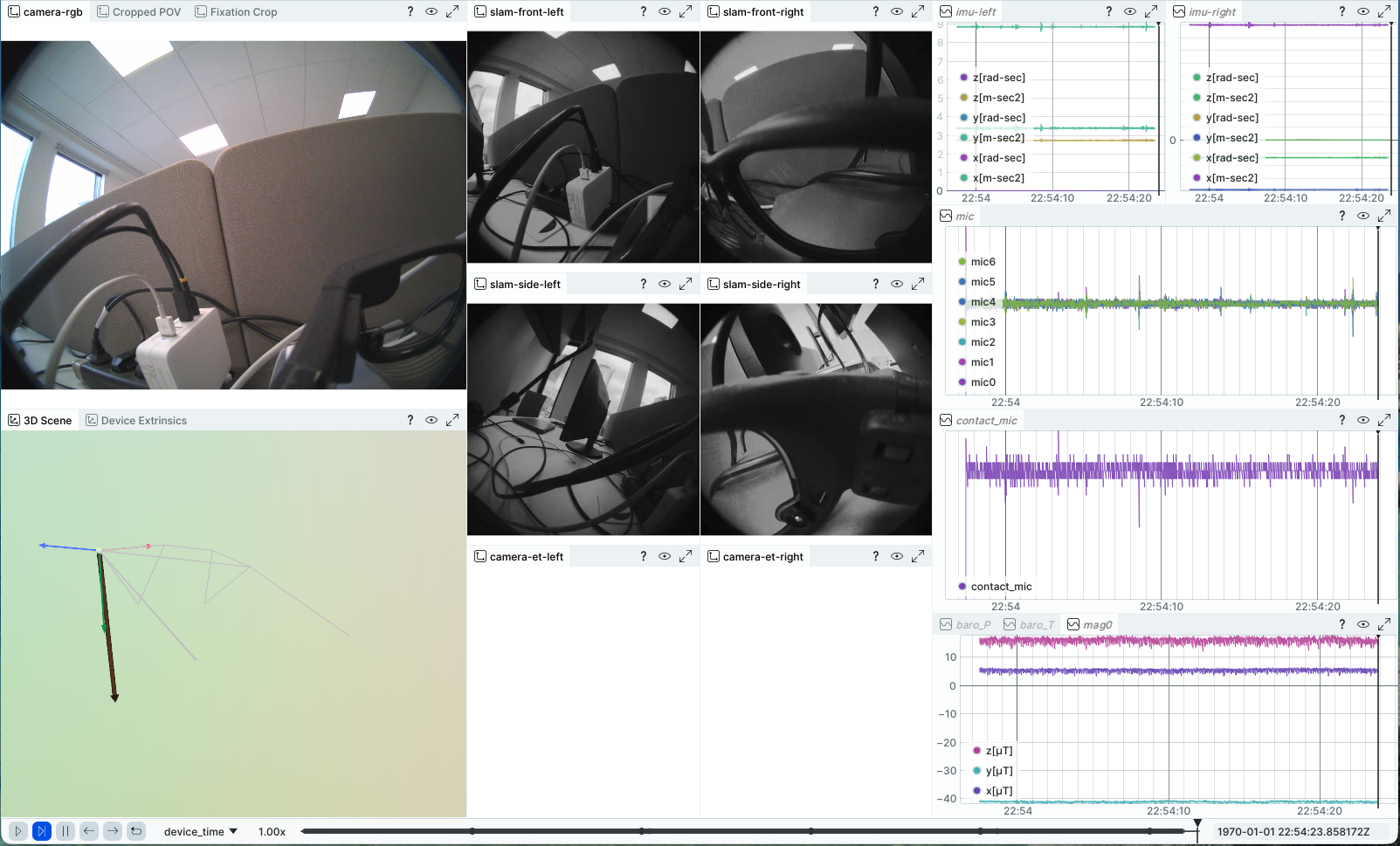
The New Streaming page lets you stream live sensor data from your Aria Gen 2 glasses into a Rerun viewer for real-time visualization.
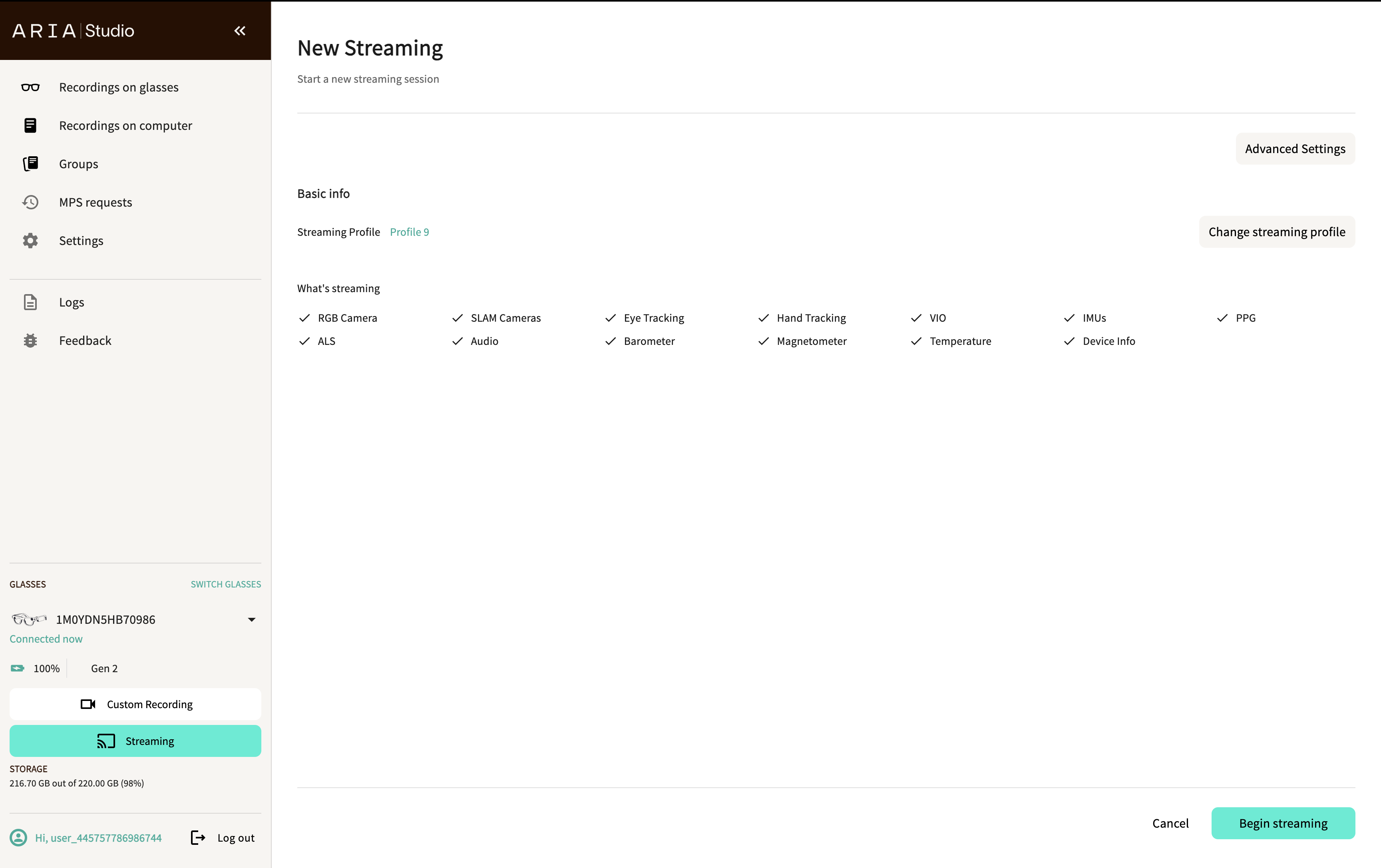
Configure streaming
- Navigate to the New Streaming page by selecting Streaming in the sidebar's Glasses Info panel.
- Select a Streaming Profile that determines which sensors stream and at what settings. The What's streaming section shows checkmarks for all active sensors.
- (Optional) Select Advanced Settings to configure streaming quality and performance (see Advanced settings).
Streaming profiles
Select Change streaming profile to browse available profiles on your device. The Streaming profiles page lists recommended profiles with their descriptions.
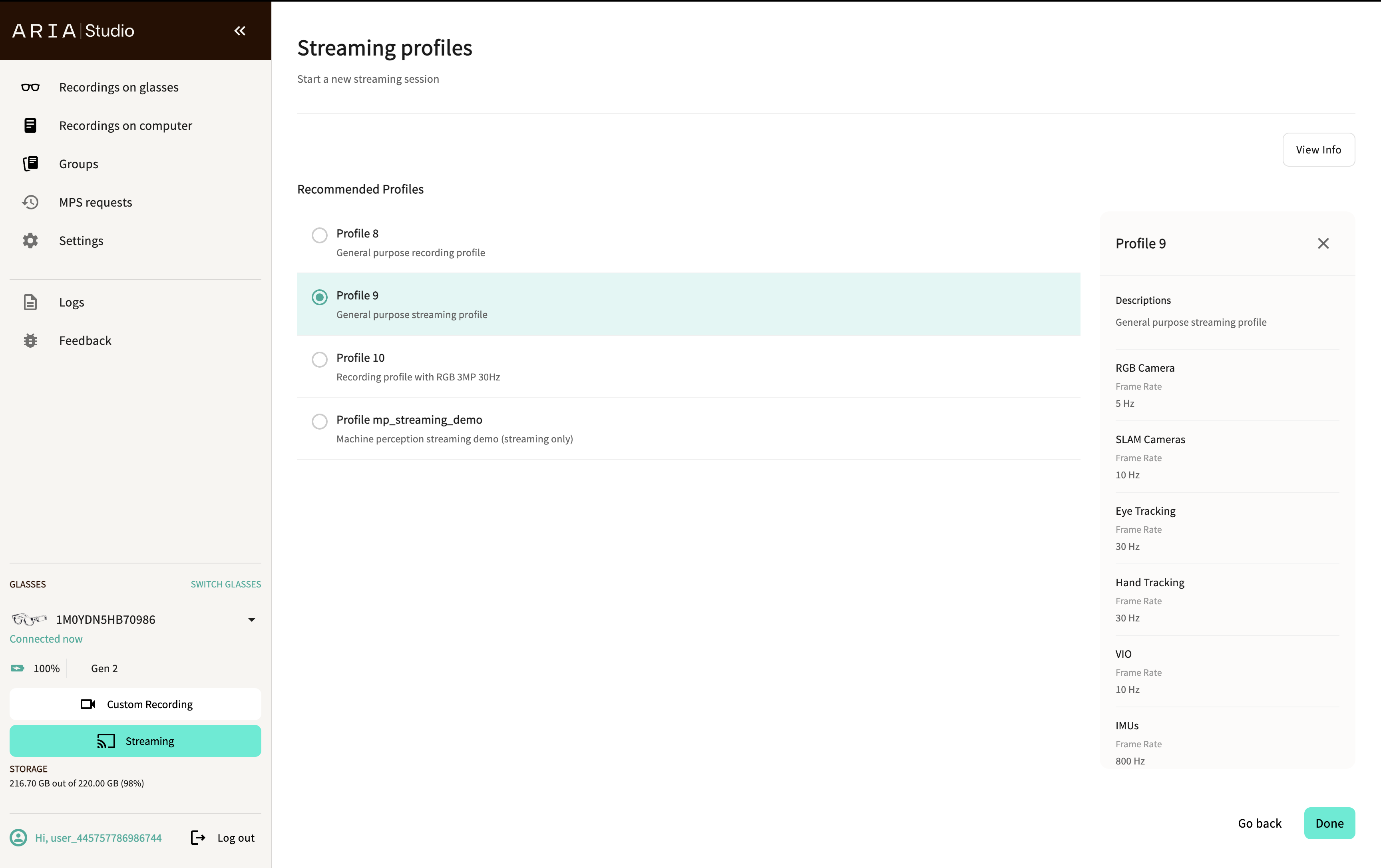
Select a profile to view its sensor configuration in the details panel, including frame rates for RGB Camera, SLAM Cameras, Eye Tracking, Hand Tracking, VIO, IMUs, and other sensors.
Default profile
When changing the profile, a dialog asks if you want to make the new profile the default for this device. Check Don't ask again to suppress this prompt.
Advanced settings
Select Advanced Settings to configure streaming quality and performance.
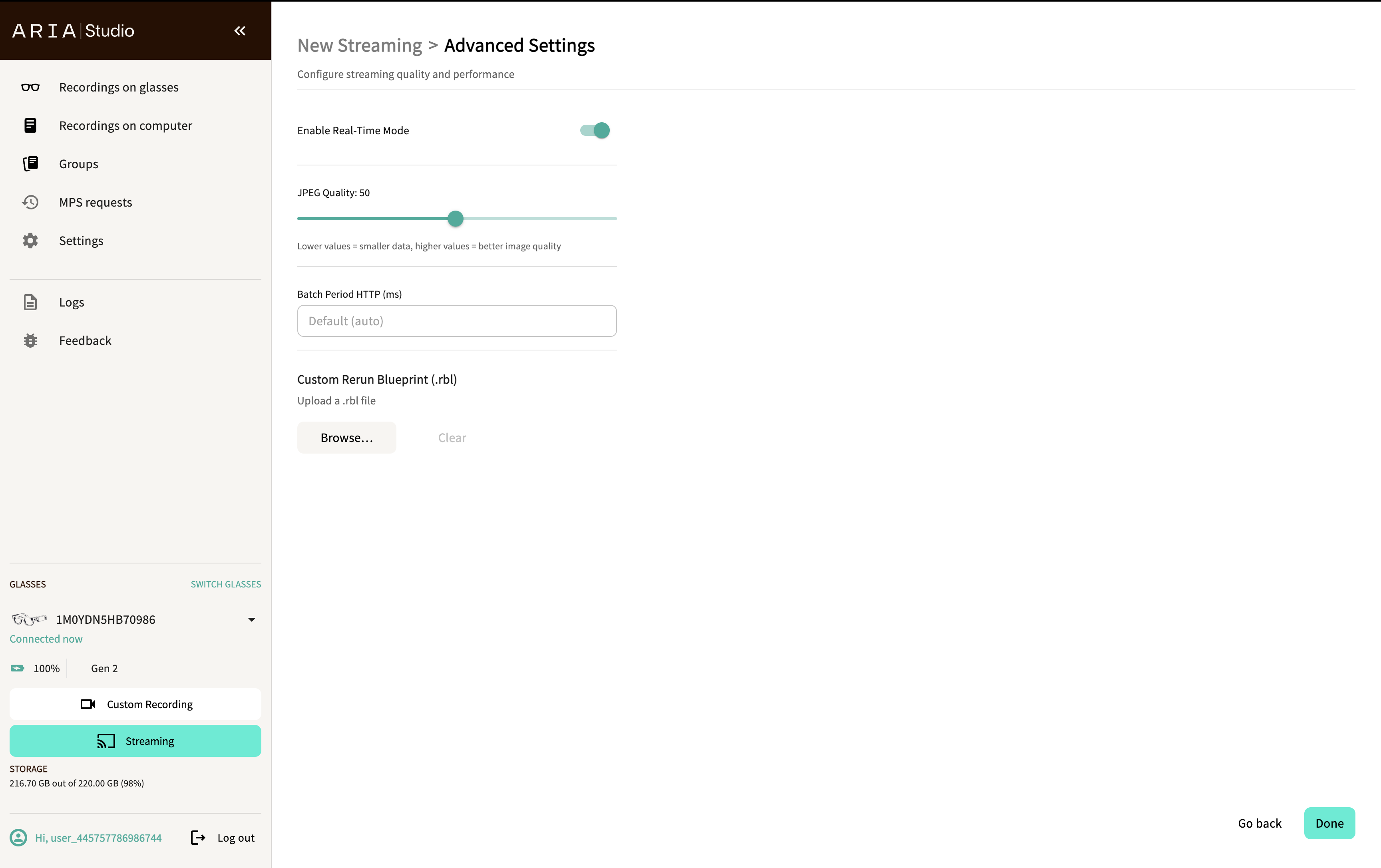
Streaming settings
| Setting | Description |
|---|---|
| Enable Real-Time Mode | Toggle for real-time data delivery |
| JPEG Quality | Image compression quality slider (lower values = smaller data, higher values = better image quality) |
| Batch Period HTTP (ms) | Data batching interval for HTTP connection |
Custom Rerun Blueprint
Provide a custom Rerun Blueprint (.rbl) file to customize the layout of the Rerun Streaming Viewer. Use Browse... to select a file and Clear to remove it.
Start streaming
- Select Begin streaming.
- On first use, a Prototype Mode consent dialog appears asking you to confirm that you are in a consented environment. Select Continue to proceed.
- The Rerun viewer opens automatically and begins displaying live sensor data.
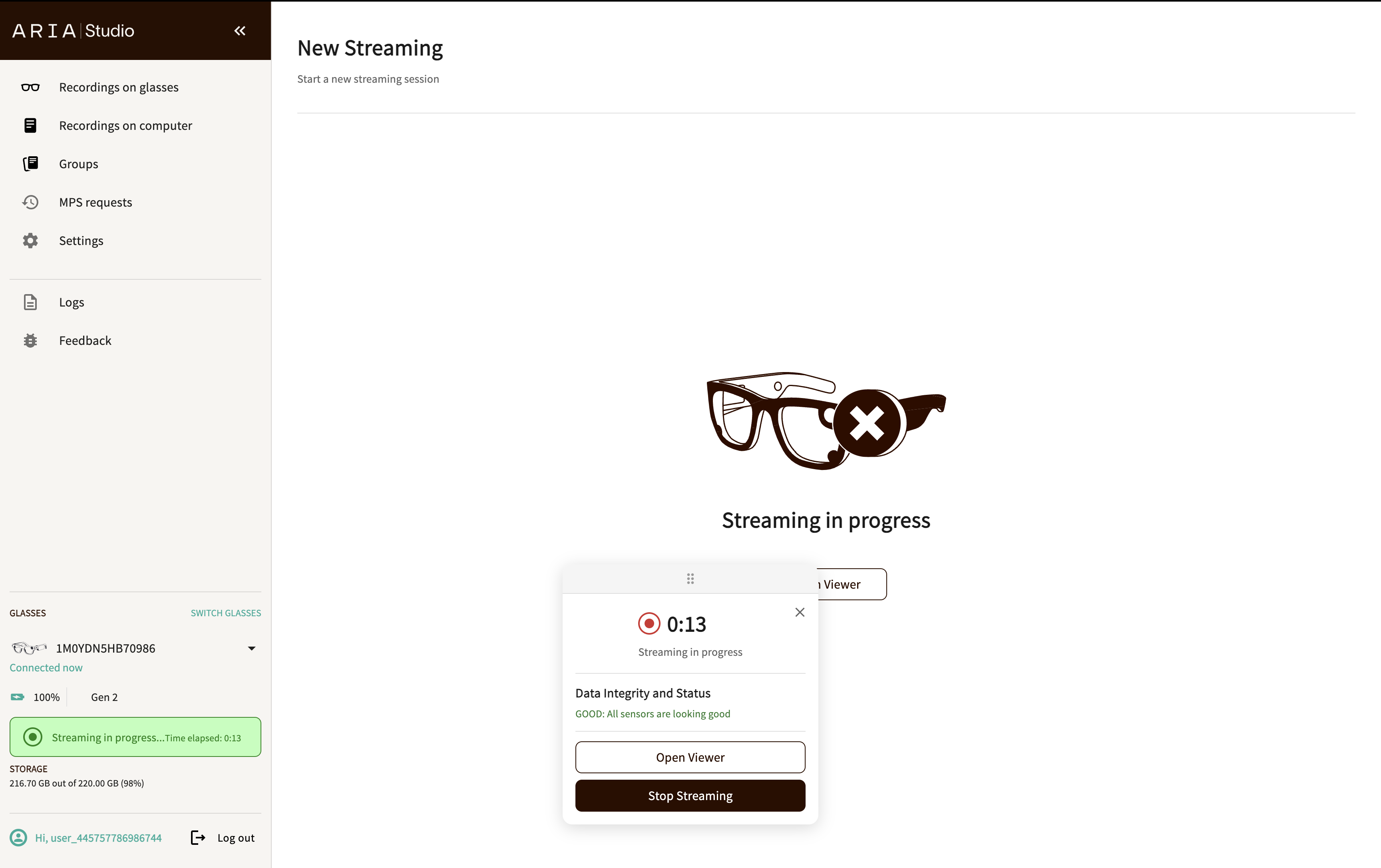
Monitor an active stream
While streaming, a floating card appears showing:
- Elapsed time counter
- "Streaming in progress" status
- Data Integrity and Status — color-coded indicator of sensor data quality:
- Green — Good: all sensors are looking good
- Orange — Degraded: some sensor issues detected
- Red — Poor: significant sensor issues detected
- Open Viewer button — reopen the Rerun viewer if you closed it
- Stop Streaming button
The sidebar also shows the streaming status and elapsed time.
Stop streaming
Select Stop Streaming on the floating card. There is a brief cooldown period between stopping and starting a new stream.
External streaming detection
Streaming sessions started by the Companion App or CLI tools are detected by Aria Studio. An info alert notifies you about externally started or stopped streams.
Only one streaming session can be active at a time. Streaming is also mutually exclusive with VRS playback visualization.
Troubleshooting
For streaming issues and solutions, see Aria Studio Troubleshooting.