Recordings on Glasses
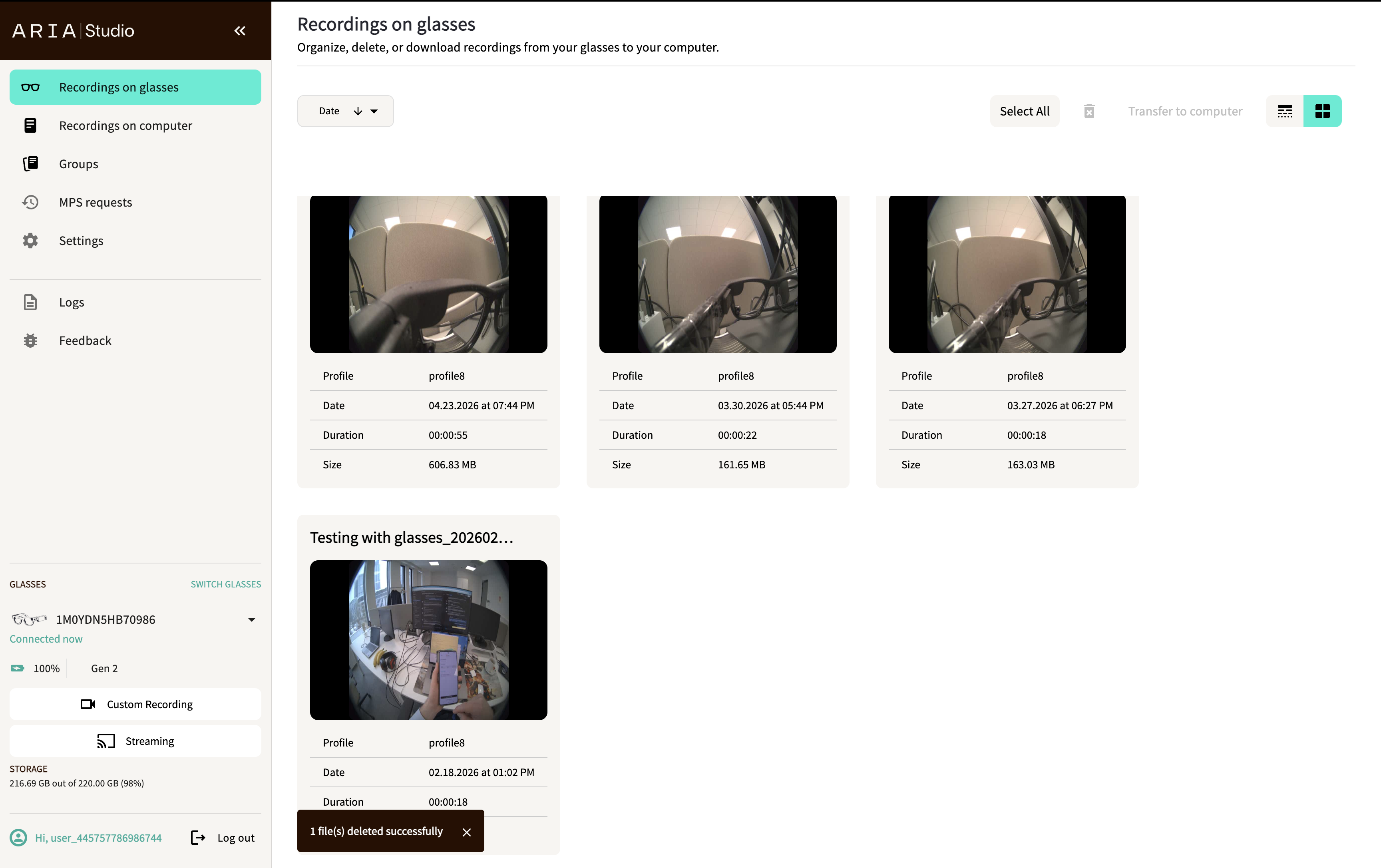
The Recordings on Glasses page lets you view, import, and delete recordings stored on your connected Aria glasses.
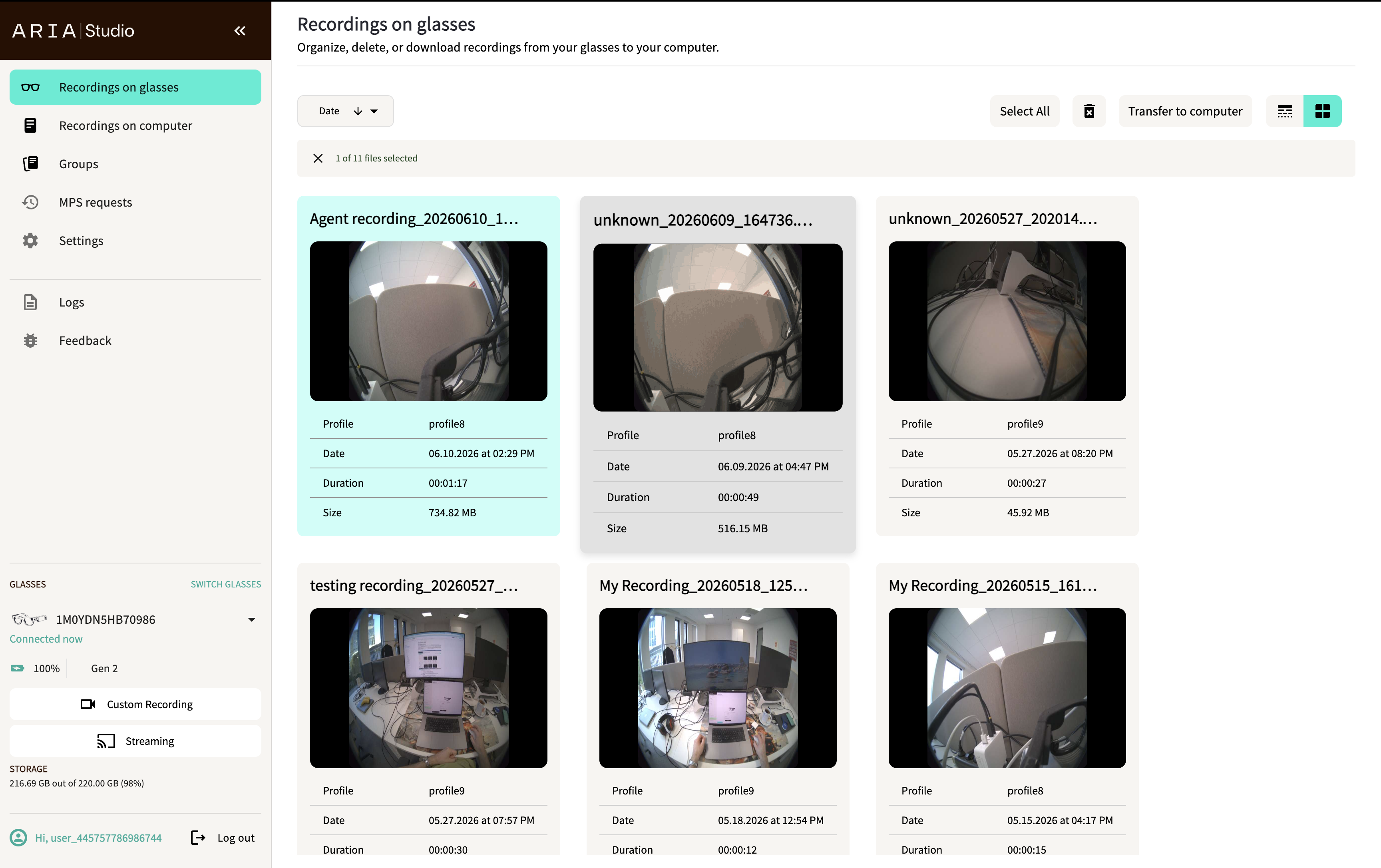
Connect your glasses
Connect your Aria glasses to your computer via USB. Aria Studio automatically discovers the device:
- Gen 2 — Detected automatically when connected via USB. You may need to authenticate the device by approving the connection in the Companion App.
- Gen 1 — Detected via ADB. No additional authentication needed.
The sidebar Glasses panel shows the device status once connected, including serial number, battery, Wi-Fi, and storage.
If multiple devices are connected, use the Switch to other glasses option in the sidebar to select the active device.
Browse recordings
All VRS recordings on the connected glasses appear as cards (grid view) or list items (list view). Each recording shows:
- Thumbnail preview (hover for animated GIF preview)
- File name
- Recording profile
- Date
- Recording duration
- File size
Sort and filter
Use the sort dropdown in the header (labeled Date by default) to order recordings by date or other criteria, in ascending or descending order.
Toggle between Grid and List views using the view toggle in the header.
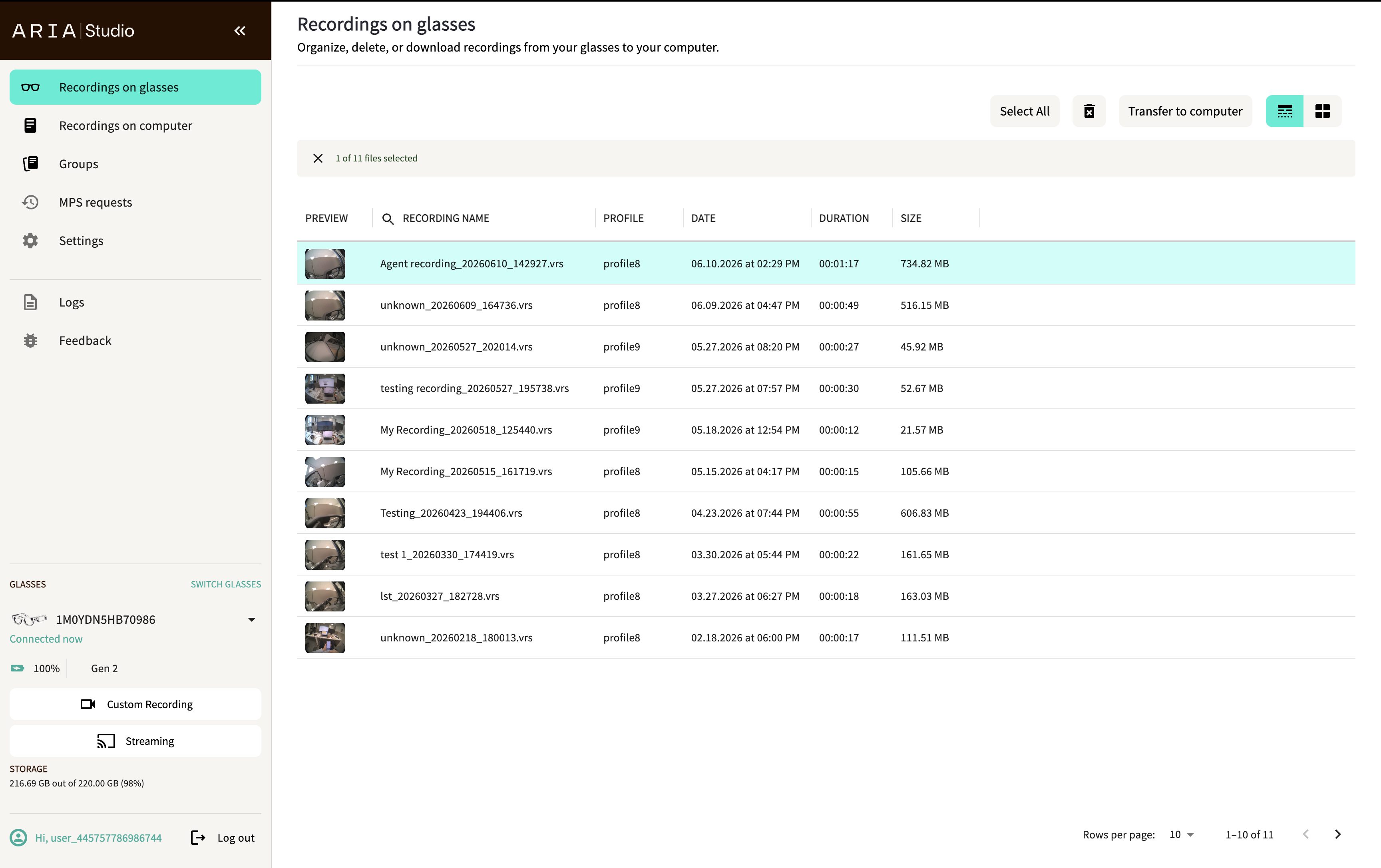
Import recordings to your computer
- Click a recording to select it. Hold Shift and click to select a range, or hold Ctrl (Cmd on macOS) and click to select multiple individually. Click Select All in the header to select all recordings.
- Select Transfer to computer in the header.
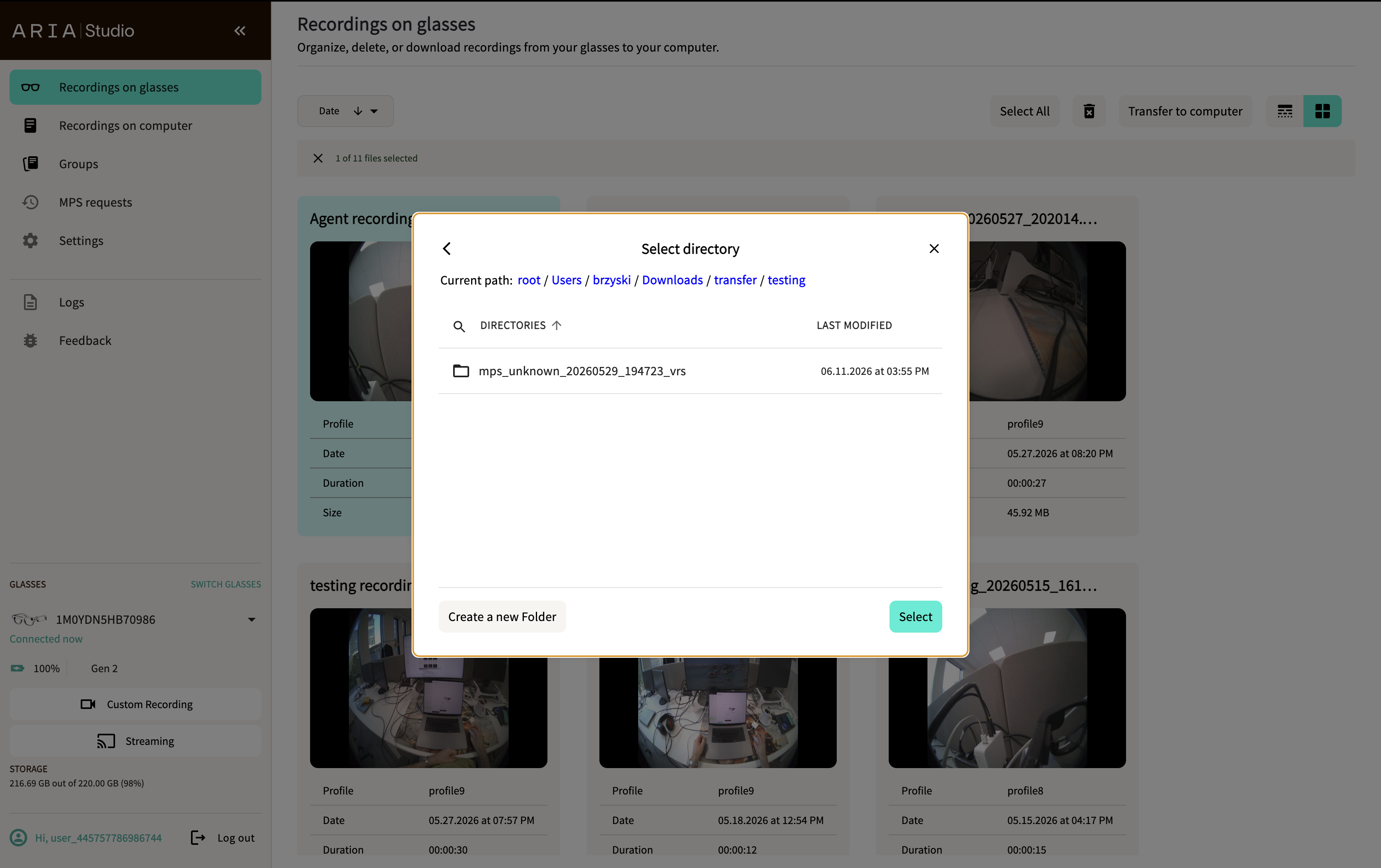
- Choose a destination folder in the Select directory dialog. You can also create a new folder from this dialog.
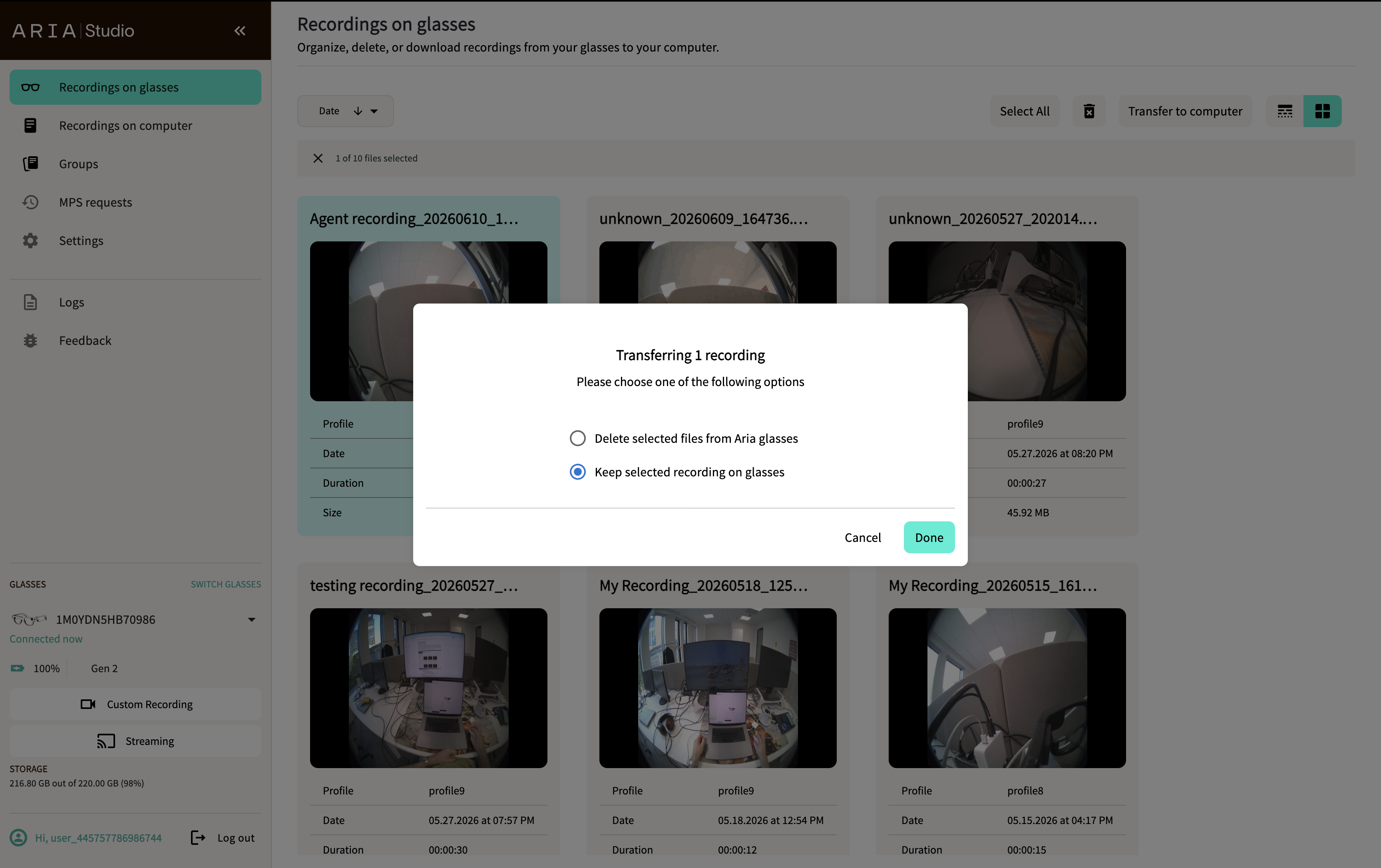
- Choose whether to delete or keep the selected files on your glasses after transfer.
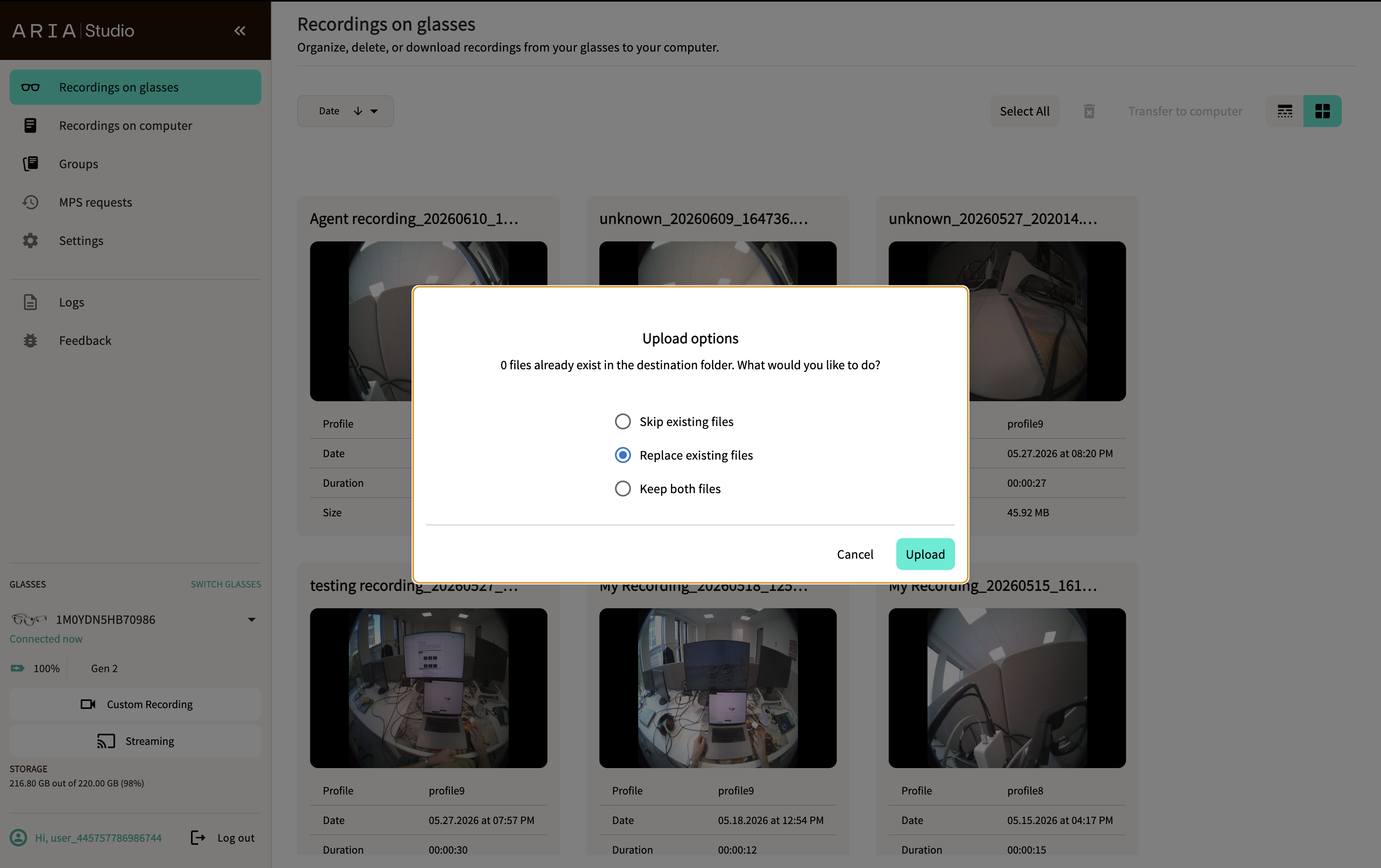
- If files already exist in the destination folder, the Upload options dialog appears:
- Skip existing files — Leave the existing file and skip the transfer for that recording.
- Replace existing files — Overwrite the existing file.
- Keep both files — Import with a modified filename.
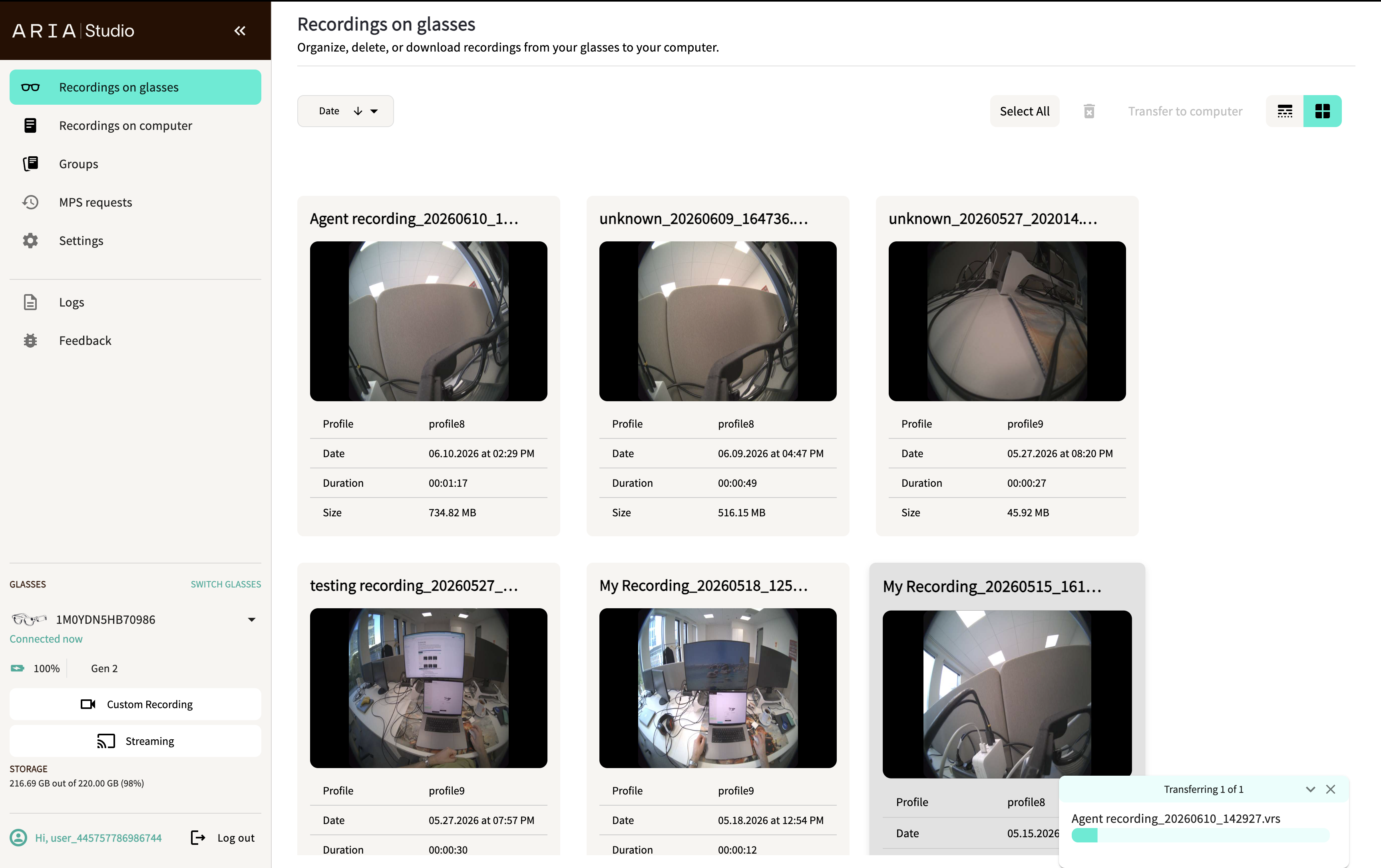
A Transferring card appears in the bottom-right corner showing:
- Number of files being transferred (e.g., "Transferring 1 of 3")
- Transfer progress bar
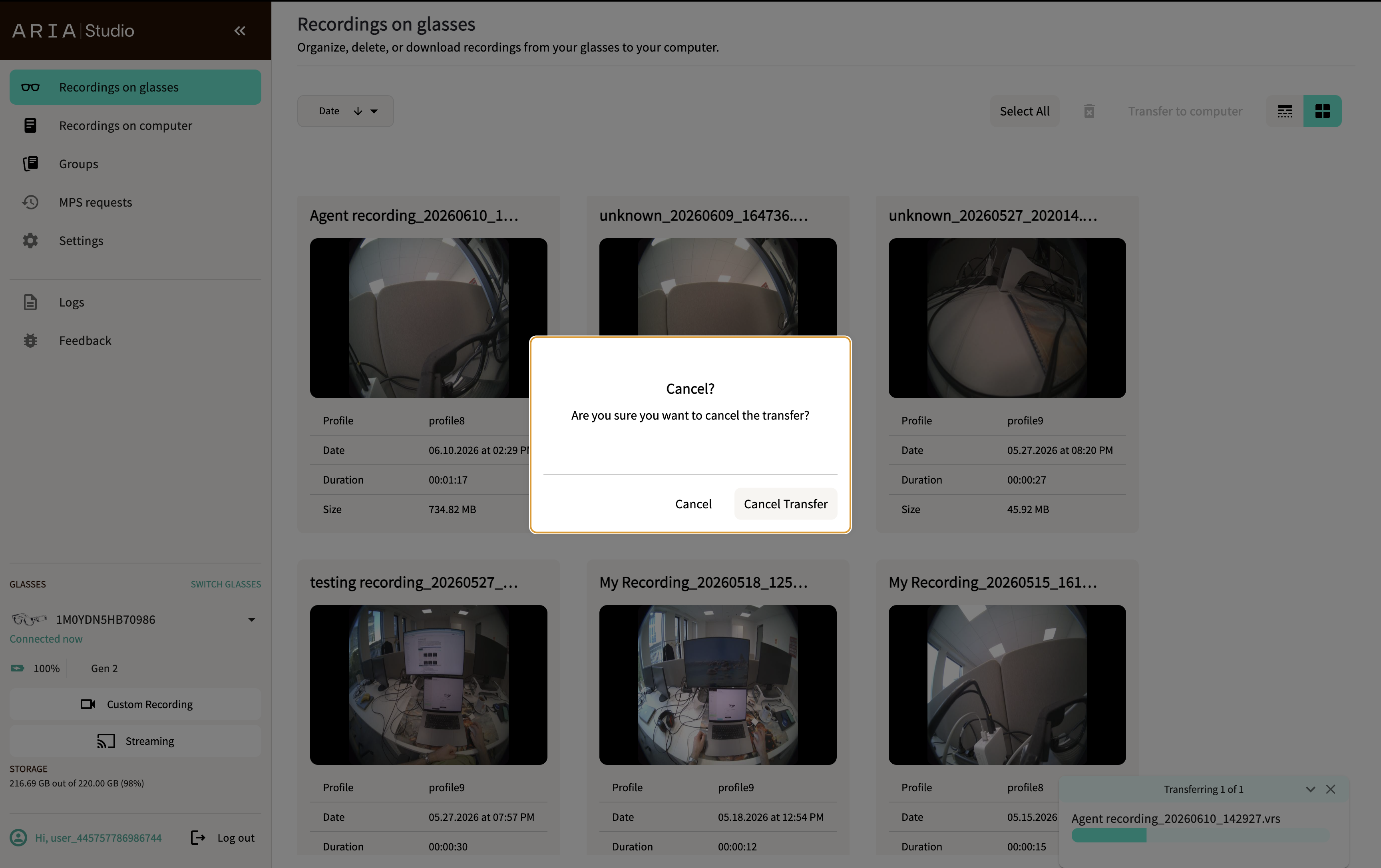
To cancel an in-progress transfer, close the progress notification. A confirmation dialog appears asking whether to cancel the remaining transfers.
Once complete, recordings are available on the Recordings on Computer page.
Delete recordings from glasses
- Select one or more recordings (use Shift+click for a range, Ctrl/Cmd+click for multiple).
- Select the Delete (trash) icon in the header.
- Confirm the deletion in the dialog.
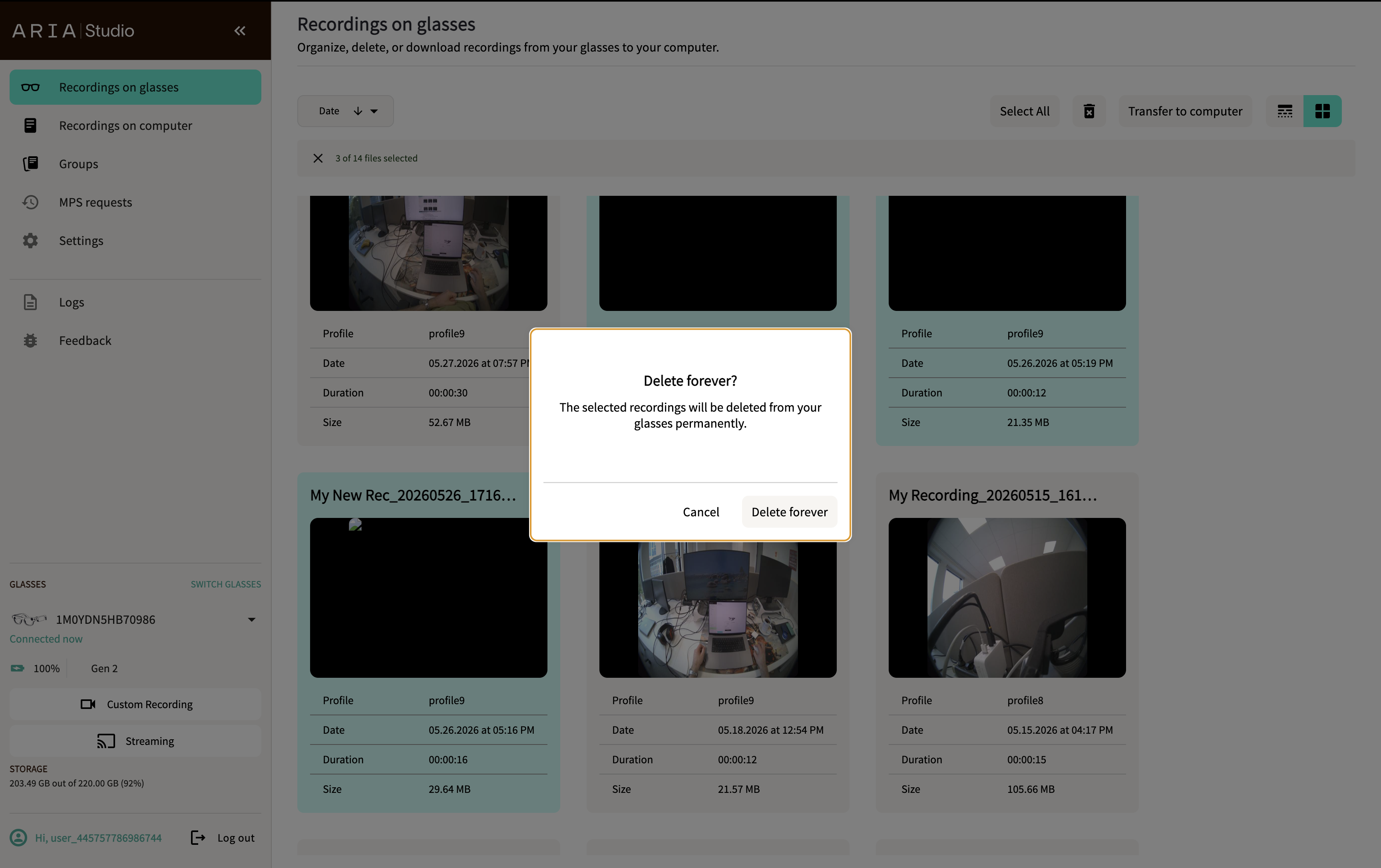
Deleted recordings are permanently removed from your glasses and cannot be recovered.
A notification confirms when the deletion is complete.
Next steps
Troubleshooting
For recordings on glasses issues and solutions, see Aria Studio Troubleshooting.