New Recording
The New Recording feature is only available with Aria Gen 2 glasses connected via USB.
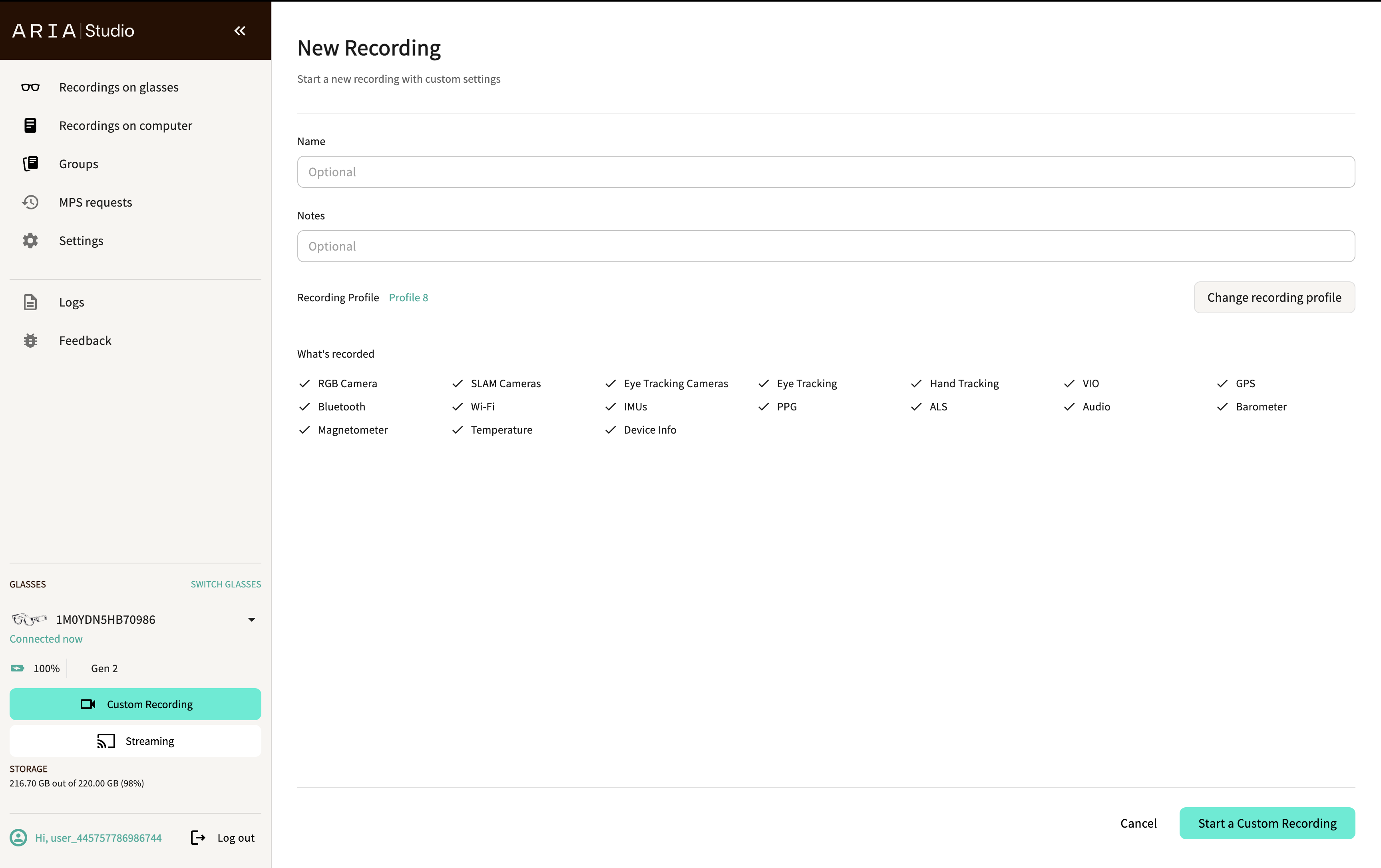
The New Recording page lets you configure and start a custom recording session directly from Aria Studio.
Start a recording
- Navigate to the New Recording page by selecting Custom Recording in the sidebar's Glasses Info panel.
- (Optional) Enter a Name for the recording.
- (Optional) Add Notes.
- Select a Recording Profile — this determines which sensors are active and at what settings. The What's recorded section shows checkmarks for all active sensors in the selected profile.
- Select Start a Custom Recording.
Recording profiles
Select Change recording profile to browse available profiles on your device. The Recording profiles page lists recommended profiles, each showing a name and description.
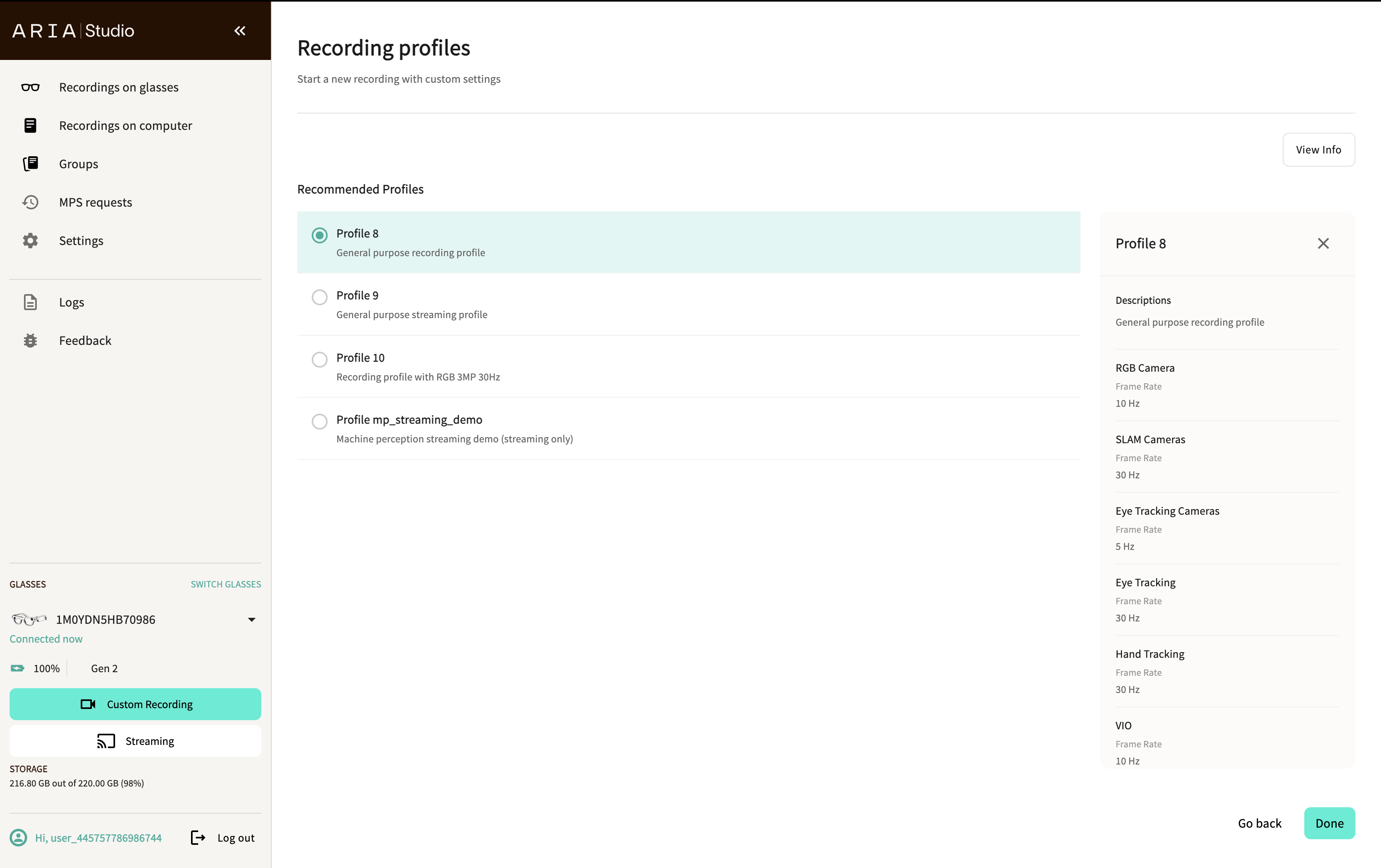
Select a profile to view its sensor configuration in the details panel on the right, including frame rates and sample rates for:
- RGB Camera
- SLAM Cameras
- Eye Tracking Cameras
- Eye Tracking
- Hand Tracking
- VIO
- And other sensors (GPS, Bluetooth, Wi-Fi, IMUs, PPG, ALS, Audio, Barometer, Magnetometer, Temperature, Device Info)
Select Done to confirm or Go back to return without changing.
Monitor an active recording
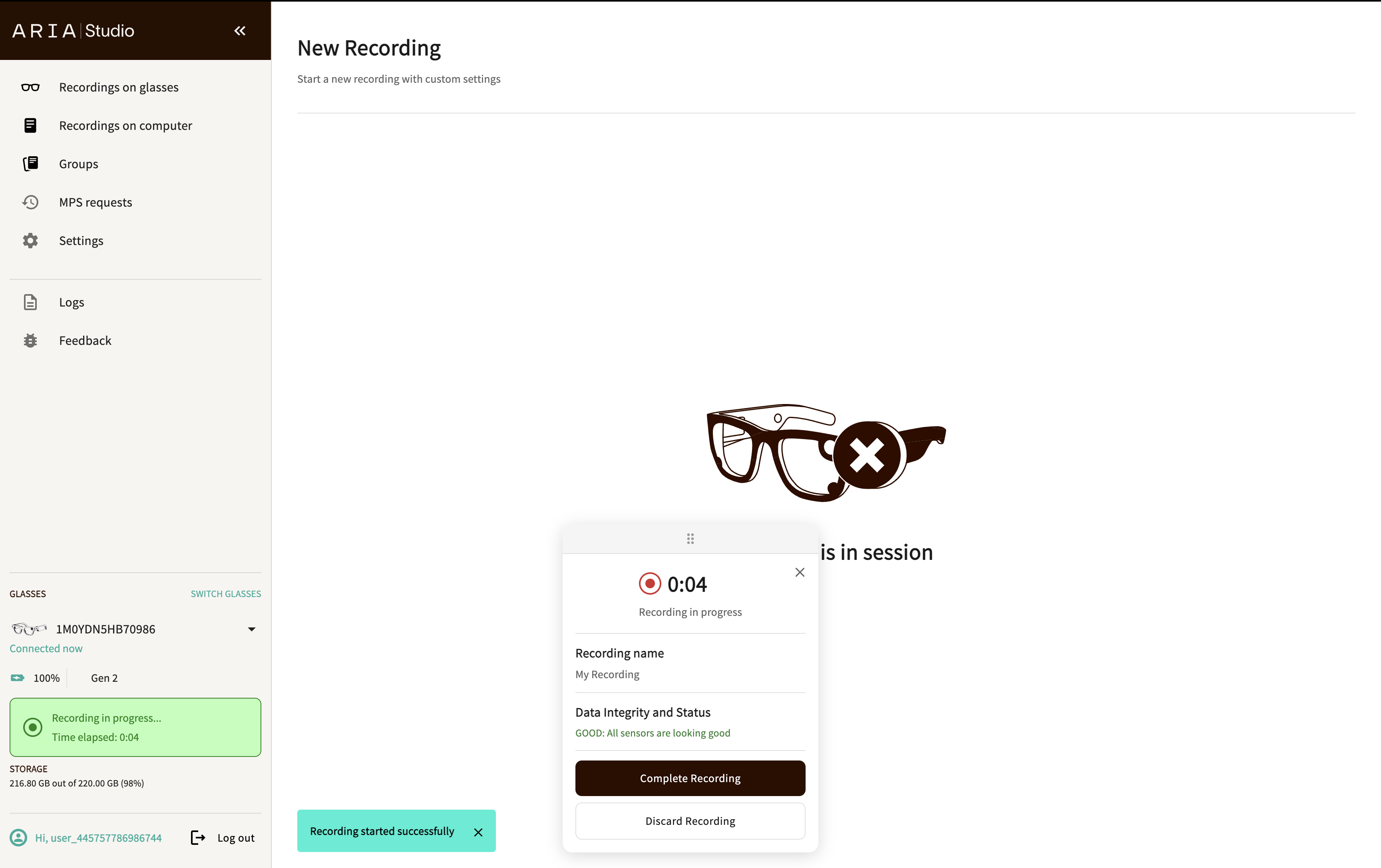
Once a recording starts, a recording card appears showing:
- Recording timer with elapsed time
- Recording name
- Data Integrity and Status — color-coded indicator of sensor data quality:
- Green — Good: all sensors are looking good
- Orange — Degraded: some sensor issues detected
- Red — Poor: significant sensor issues detected
- Complete Recording button — saves the recording
- Discard Recording button — stops and discards the recording
The sidebar also shows the recording status and elapsed time.
Complete or discard a recording
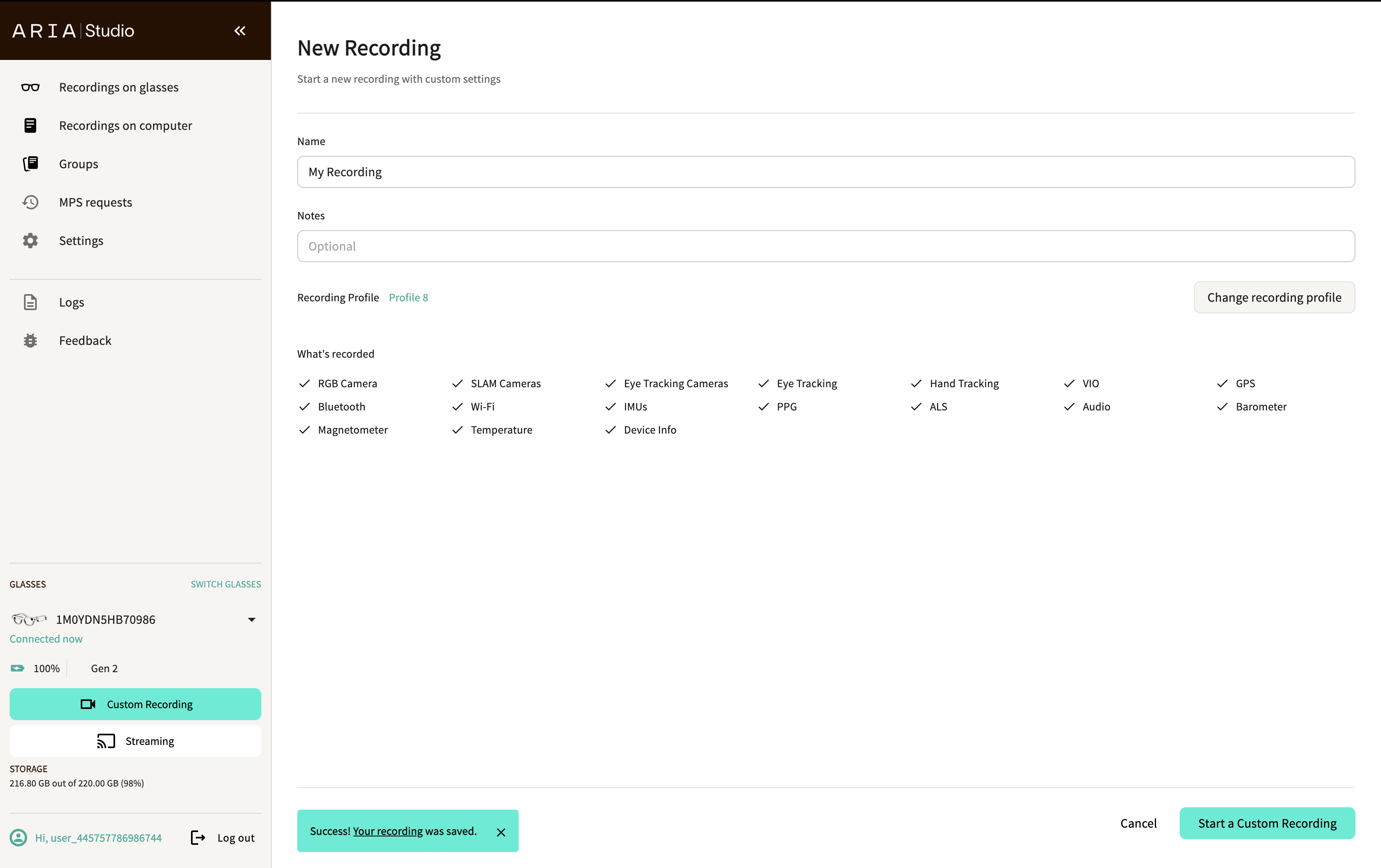
- Select Complete Recording to save the recording to your glasses. A success notification appears with a link to the recording.
- Select Discard Recording to stop recording without saving.
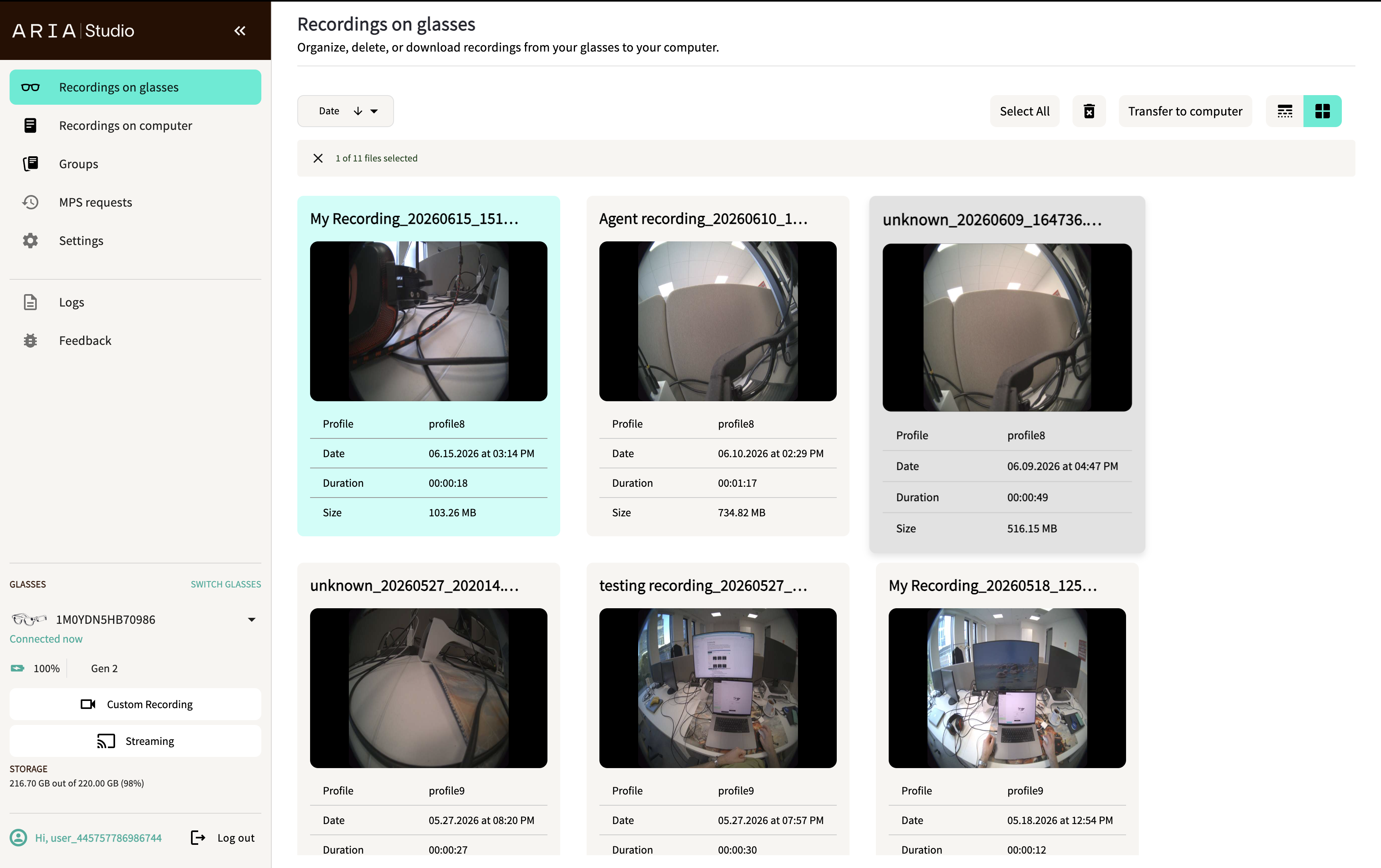
The saved recording appears on the Recordings on Glasses page.
External recording detection
Recordings can also be started or stopped by:
- The Companion App
- The physical button on the glasses
- CLI tools
Aria Studio detects these external events and shows an info alert notifying you that a recording was started or stopped by another source.