Get Started
Aria Studio is a desktop application for managing Project Aria glasses and recordings. It is part of the Aria Research Kit (ARK) and replaces the legacy Desktop App (deprecated May 30, 2025). Aria Studio provides a single interface to connect to Aria devices, browse and import VRS recordings, run Machine Perception Services (MPS), and visualize the results.
Key features
- Device management — Connect to Gen 1 and Gen 2 Aria glasses over USB, browse on-device recordings, and import them to your computer.
- Local recording library — Organize VRS files on disk, view metadata and thumbnails, and group recordings for multi-SLAM processing.
- MPS integration — Request SLAM (Simultaneous Localization and Mapping), eye gaze, and hand tracking results for individual recordings or recording groups directly from the UI.
- Rerun visualization — Stream VRS sensor data and MPS outputs into the Rerun viewer for interactive 3D exploration (all streams except audio).
- Live streaming (Gen 2 only) — Stream live sensor data from your glasses.
- Custom recording (Gen 2 only) — Start and stop recordings with custom profile settings.
Supported Platforms
| OS / Platform | OS / Distro Details | Aria Gen2 Support | Supported Python Versions |
|---|---|---|---|
| Linux (x64) | Ubuntu 22.04 LTS (jammy) / 24.04 LTS (Noble Numbat), and recent Fedora releases. Requires glibc 2.34 or newer | ✅ Supported | 3.10 – 3.14 |
| Linux (ARM64 / aarch64) | — | ❌ Not supported — VRS Health Check has no ARM64 wheel | — |
| macOS (Apple Silicon / ARM64) | macOS 14+ (Sonoma or newer) on M1/M2/M3/M4 | ✅ Supported | 3.10 – 3.14 |
| macOS (Intel / x64) | — | ❌ Not supported — no x86_64 macOS wheels exist for the packages Aria Studio depends on | — |
| Windows (x64) | — | 🚧 Planned — previous one-click installer available for v1.0.3 and earlier; native support pending Client SDK for Windows | — |
Aria Studio is pure Python, so its platform matrix is inherited from what it installs: projectaria-client-sdk sets the glibc 2.34 floor (Ubuntu 22.04 and newer), projectaria-tools sets macOS 14+, and projectaria-vrs-health-check — which has no ARM64 wheel — is what rules out ARM64 Linux. Its Python range, 3.10 to 3.14, is the same as theirs.
Installation
- PyPI
- One-click installer
Requirements
- Python 3.10 to 3.14
- A virtual environment is recommended
Install
python3 -m pip install aria_studio --no-cache-dir
Using a virtual environment
python3 -m venv ~/projectaria_gen2_python_env
source ~/projectaria_gen2_python_env/bin/activate
pip install aria_studio --no-cache-dir
Download the installer for your platform:
| Platform | Download |
|---|---|
| macOS (ARM) | Aria_Studio-2.0.1-arm64.dmg |
| Linux (x64) | Aria_Studio-2.0.1-Linux.appimage |
Check the Aria Studio Changelog for the latest updates.
Previous versions
| Version | Platform | Download link |
|---|---|---|
| 2.0.0 | Mac ARM | Aria_Studio-2.0.0-arm64.dmg |
| 2.0.0 | Linux | Aria_Studio-2.0.0-Linux.appimage |
| 1.1.2 | Linux | Aria_Studio-1.1.2-Linux.appimage |
| 1.1.1 | Mac ARM | Aria_Studio-1.1.1-arm64.dmg |
| 1.1.1 | Linux | Aria_Studio-1.1.1-Linux.appimage |
| 1.1.1 | Windows | Aria_Studio-1.1.1-windows.exe |
| 1.1.0 | Mac ARM | Aria_Studio-1.1.0-arm64.dmg |
| 1.1.0 | Linux | Aria_Studio-1.1.0-Linux.appimage |
| 1.1.0 | Windows | Aria_Studio-1.1.0-windows.exe |
| 1.0.3 | Mac ARM | Aria_Studio-1.0.3-arm64.pkg |
| 1.0.3 | Mac Intel | Aria_Studio-1.0.3-Intel.pkg |
| 1.0.3 | Linux | Aria_Studio-1.0.3-Linux.AppImage |
| 1.0.3 | Windows | Aria_Studio-1.0.3-windows.exe |
Launch the application
- PyPI install
- Desktop installer
Run the following command:
aria_studio
The application opens a browser window at http://127.0.0.1:8000. To choose a different port or suppress the browser:
aria_studio --port 9000 --no-browser
If you used a virtual environment, reactivate it before launching:
source ~/projectaria_gen2_python_env/bin/activate  # Linux/macOS
aria_studio
Closing the browser tab does not quit Aria Studio — the server continues running in the background. To fully stop the application, press Ctrl+C in the terminal.
Launch Aria Studio from your Applications folder (macOS) or directly via the AppImage (Linux).
To fully stop the application, quit it from the system tray or close the application window.
Log in
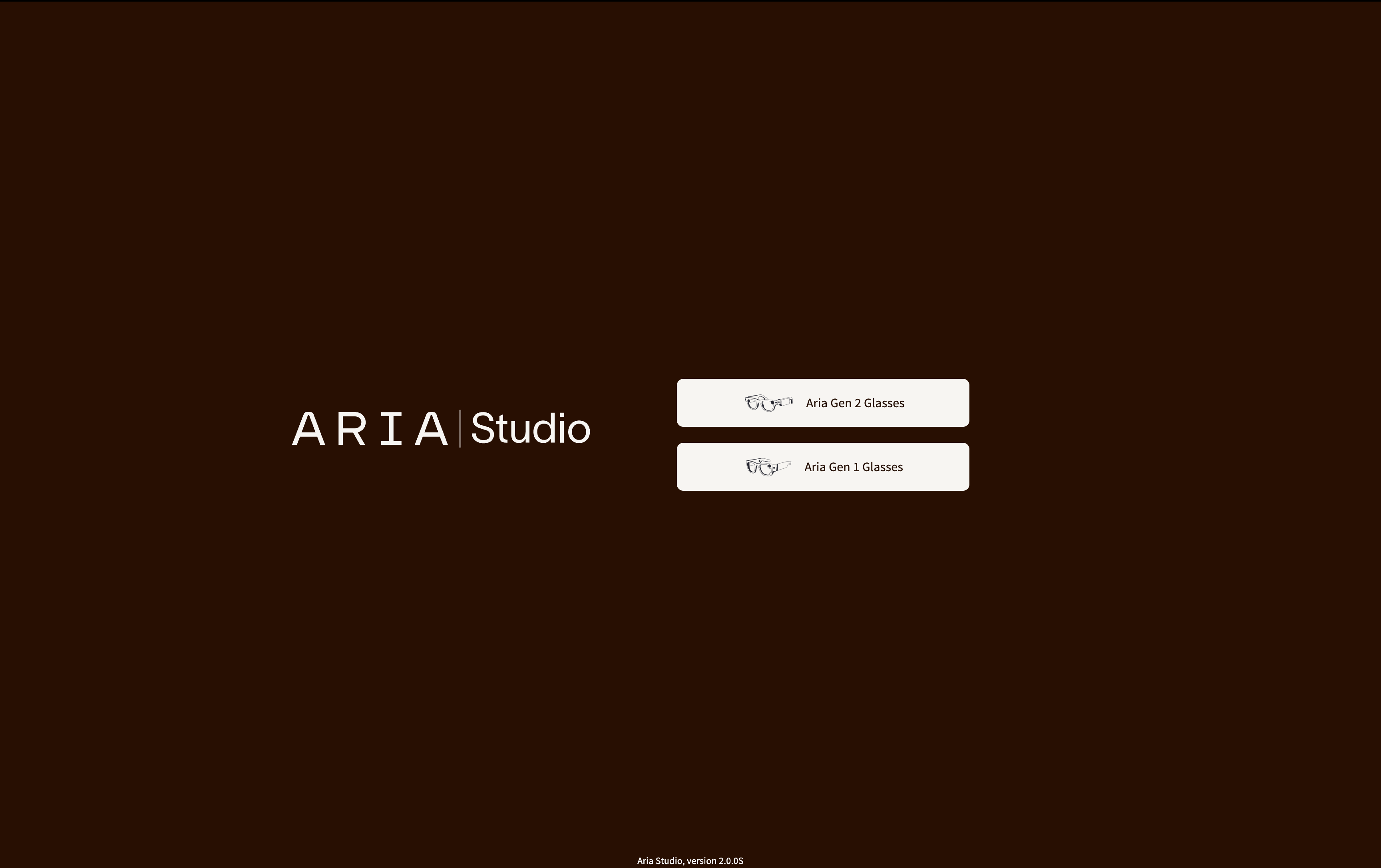
When you first launch Aria Studio, you'll see the User Type Selection screen. Choose the glasses generation you're using and follow the login prompts. For detailed instructions, credential storage, and session management, see Authentication.
Home screen
After logging in, you'll see the Home dashboard with quick access to the main features:
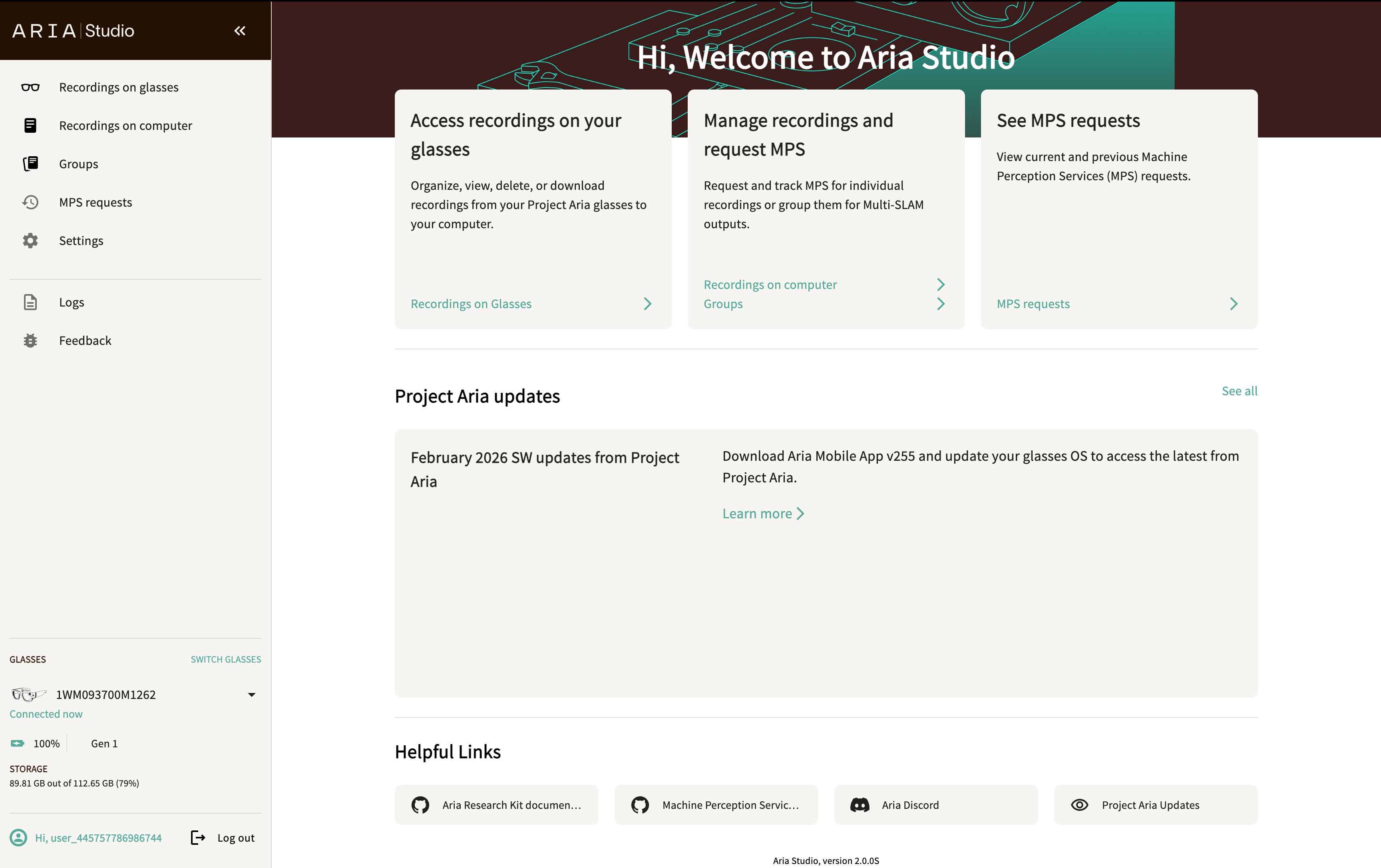
- Access recordings on your glasses — Opens the Recordings on Glasses page.
- Manage recordings and request MPS — Opens Recordings on Computer or Groups.
- See MPS requests — Opens the MPS Requests page.
Below the feature cards, the Home screen also shows the latest Project Aria updates (see Read Project Aria news) and a Helpful Links row with shortcuts to the Aria Research Kit documentation, the Machine Perception Services overview, the Aria Discord, and the full Project Aria Updates page.
Read Project Aria news
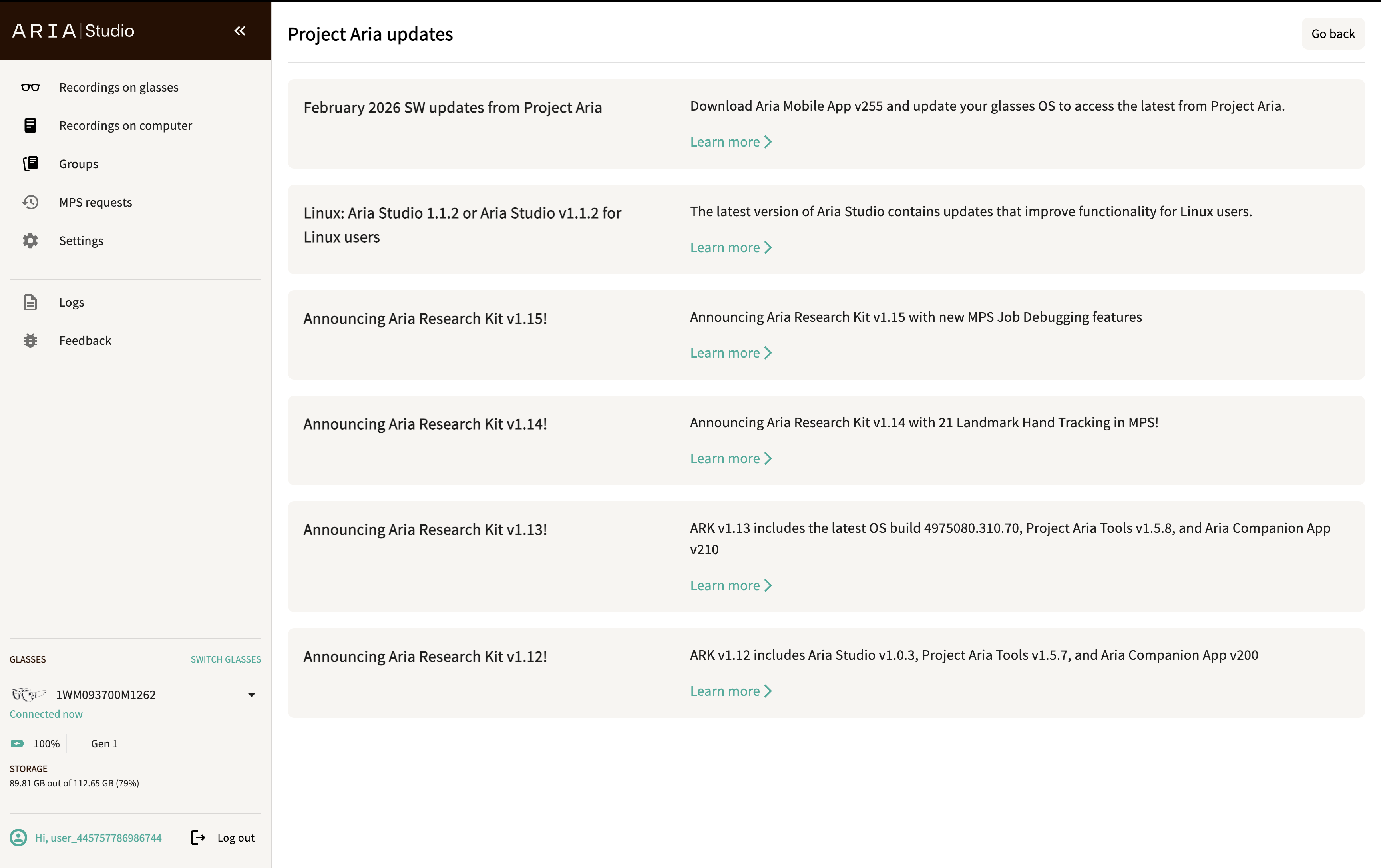
Aria Studio surfaces announcements from Project Aria — new releases, OS and Mobile App updates, and feature highlights — directly in the app. The feed is fetched live, so it stays current without reinstalling Aria Studio.
The Project Aria updates section on the Home screen shows the most recent announcement. To see the complete history, click See all (or the Project Aria Updates card under Helpful Links).
Navigation
The collapsible sidebar is visible on every page after you log in. It provides access to:
| Tab | Description |
|---|---|
| Recordings on glasses | Manage recordings stored on your connected glasses |
| Recordings on computer | Manage imported VRS files on your local machine |
| Groups | Organize recordings into groups for Multi-SLAM |
| Past MPS requests | View status of all MPS processing requests |
| Settings | Configure upload, download, and processing options |
| Logs | View application logs for troubleshooting |
| Feedback | Submit bug reports or feature requests |
Sidebar panels
At the bottom of the sidebar you'll find:
- Glasses — Shows the connected device's serial number, battery level, Wi-Fi status, and available storage. For Gen 2 devices, this panel also has Custom Recording and Streaming buttons.
- User Info — Displays your username and a Logout button.
MPS configuration
Aria Studio shares its MPS configuration with the MPS CLI. Settings are stored at $HOME/.projectaria/mps.ini and control upload/download speeds, retry behavior, and concurrency. You can modify these settings through the Settings page in the app.
Licensing
Aria Studio is Meta Licensed Materials distributed under the Apache License, Version 2.0.
Next steps
- Set up the Client SDK for first-time device configuration and authentication
- Log in and manage credentials
- Connect and manage your glasses
- Manage recordings on your glasses
- Work with local recordings
- Create groups and request Multi-SLAM
- Start a new recording (Gen 2 only)
- Stream live sensor data (Gen 2 only)