Authentication
Aria Studio requires authentication to access Machine Perception Services (MPS), check for updates, and interact with other cloud features. This page covers the login and logout flows, credential storage, and session management.
Choosing your login method
When you launch Aria Studio, the User Type Selection screen presents two login options based on your glasses generation:
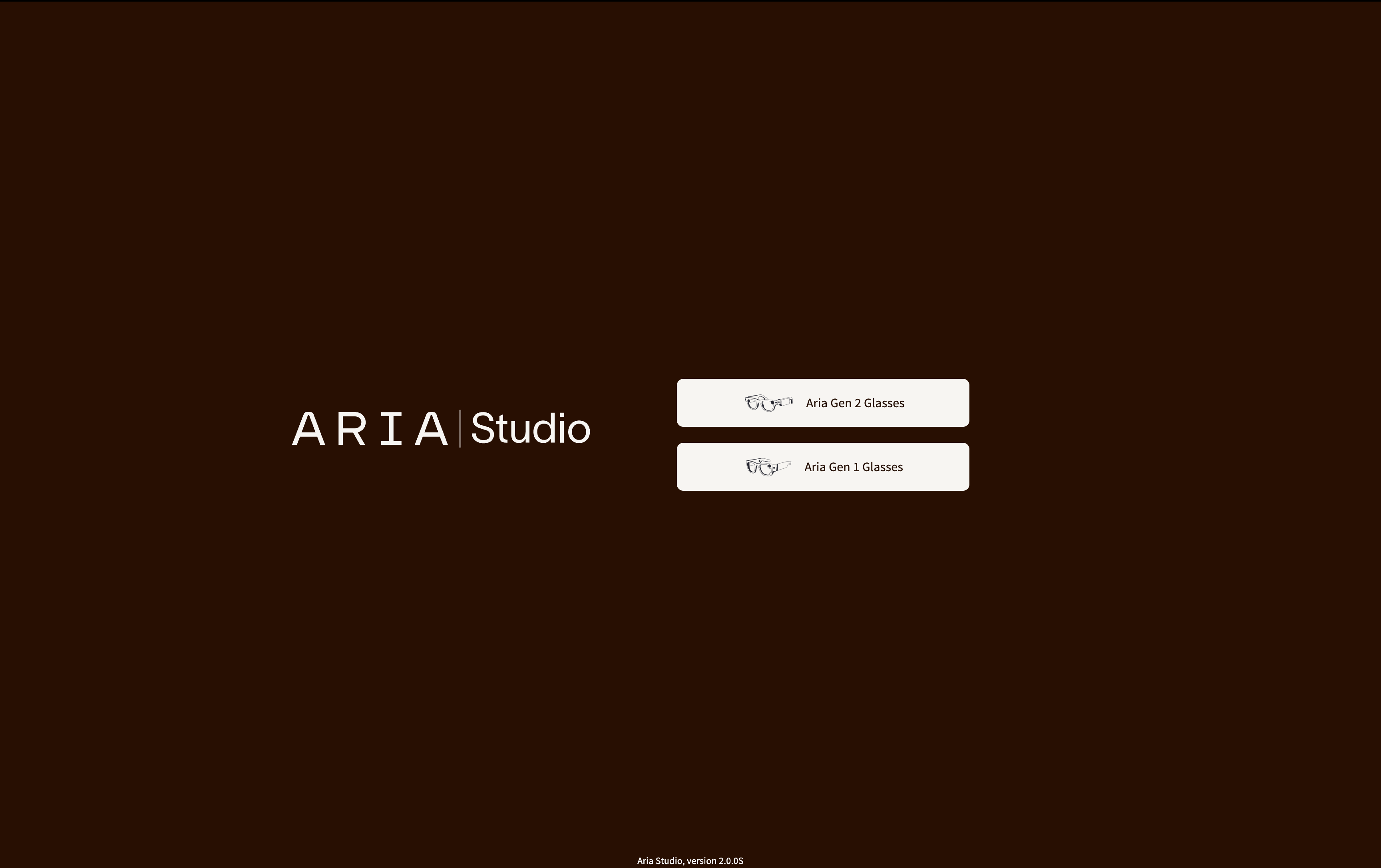
| Button | Login method | For |
|---|---|---|
| Aria Gen 2 Glasses | Meta Managed Account (MMA) Single Sign-On | Gen 2 glasses users with a Meta Work account |
| Aria Gen 1 Glasses | Username and password | Gen 1 glasses users with partner credentials |
Gen 2 login (MMA SSO)
The MMA login uses Meta's Single Sign-On (SSO) system. No username or password is entered directly in Aria Studio.
Step by step
- Select Aria Gen 2 Glasses on the User Type Selection screen.
- Your default web browser opens to
work.meta.comwith the Meta authentication page. - Log in with your Meta Work account credentials in the browser.
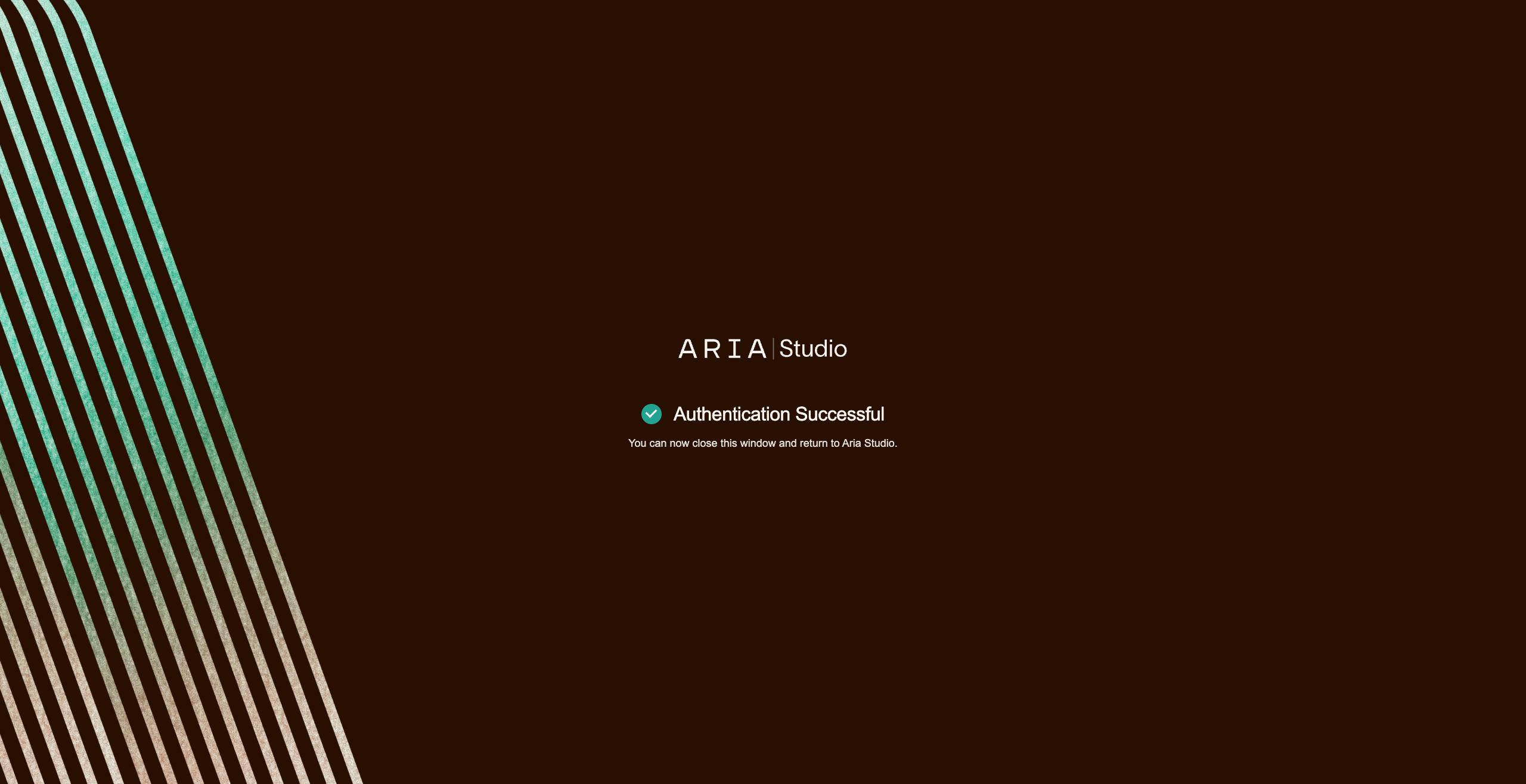
- After successful authentication, Meta redirects back to Aria Studio (at
127.0.0.1on your machine). - Aria Studio automatically detects the login and navigates to the Home screen. You can close the browser window at this point.
Your MMA auth token is always remembered. If you don't want your credentials to persist, log out when you're done using Aria Studio.
The MMA SSO login must complete within 5 minutes of initiating the flow. If the page times out, return to Aria Studio and try again.
Port requirements
MMA login only works when Aria Studio runs on these ports:
| Environment | Port |
|---|---|
| PyPI install | 8000 |
| Desktop app (one-click installer) | 8134 |
If you specified a custom port via --port, MMA login will not work unless it's one of these ports.
Gen 1 login (username and password)
Step by step
- Select Aria Gen 1 Glasses on the User Type Selection screen.
- Enter your username (you can enter just the username without the email domain — the correct suffix is added automatically).
- Enter your password. Use the eye icon to toggle password visibility.
- Optionally check Remember me to save your credentials for future sessions.
- Select Login.
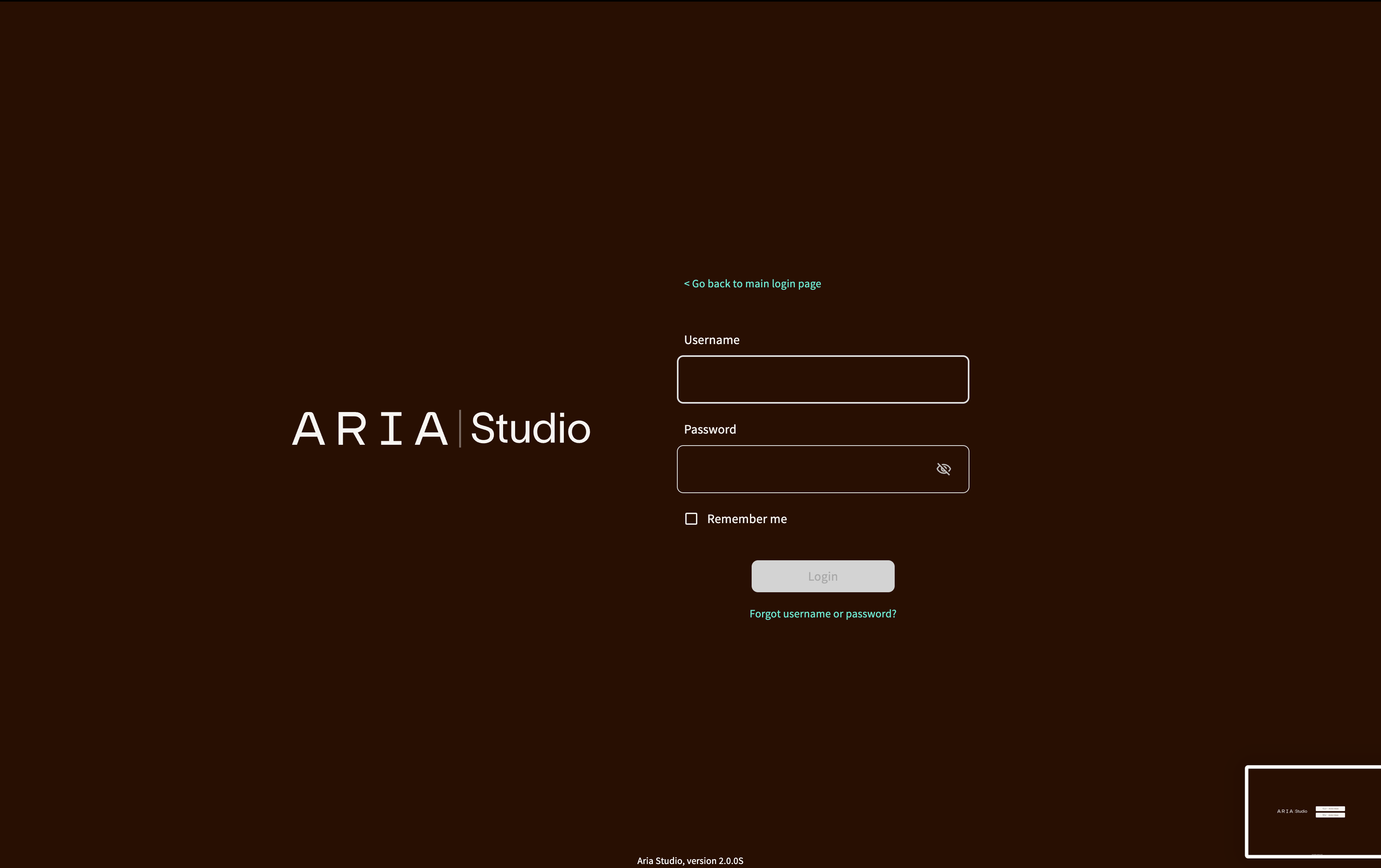
If login fails, an error message appears: "Incorrect username or password." Verify your credentials and try again.
Forgot credentials
Select Forgot username or password? on the login page. You'll be directed to contact AriaOps@meta.com with your partner email and organization name for assistance.
Credential storage
Aria Studio delegates authentication and token storage to the shared Project Aria Login module. By default your token is stored in your operating system's secure credential manager:
| Platform | Storage backend |
|---|---|
| macOS | macOS Keychain |
| Linux | Secret Service (GNOME Keyring / KWallet) |
Encrypted file fallback
When no system keyring is available — for example on a headless Linux host, a container, or a minimal OS image — Project Aria Login can instead persist the token to an encrypted local file at ~/.projectaria/auth_token.enc. The token is encrypted with AES-256-GCM using a key derived from the PROJECTARIA_TOKEN_KEY environment variable.
PROJECTARIA_TOKEN_KEYAria Studio has no UI for entering an encryption passphrase. It can therefore use the encrypted file only when the PROJECTARIA_TOKEN_KEY environment variable is set to a secret of at least 12 characters before Aria Studio starts:
export PROJECTARIA_TOKEN_KEY=<at least 12 characters>
- With
PROJECTARIA_TOKEN_KEYset and no keyring available, your token is saved to and restored from the encrypted file automatically — no prompt. - Without
PROJECTARIA_TOKEN_KEY(and no keyring), the token is kept in memory only for the current session; you'll need to log in again the next time Aria Studio starts. - A passphrase-protected encrypted file created by another tool (for example, the MPS CLI prompting for a passphrase) cannot be unlocked by Aria Studio at all — not even by setting
PROJECTARIA_TOKEN_KEY. The file records which key source protected it, and settingPROJECTARIA_TOKEN_KEYunlocks only files that were originally written with that env var (even the identical secret in the env var will not decrypt a passphrase-written file). To use the encrypted file with Aria Studio, re-create it with the env var set: setPROJECTARIA_TOKEN_KEY, then log in again (e.g. via the CLI or MPS CLI) so the token is written with the env-var key source.
Anyone with both read access to the encrypted file and the PROJECTARIA_TOKEN_KEY value can decrypt the token. On shared hosts, prefer the system keyring and treat the env var as a secret.
See Token Storage for the full storage policy, on-disk format, and security model.
How "Remember me" works
| Login method | Default behavior | With "Remember me" |
|---|---|---|
| Gen 2 (MMA) | Token is always saved to the system keyring (or the encrypted file when no keyring is available and PROJECTARIA_TOKEN_KEY is set) | Not applicable (always saved) |
| Gen 1 (password) | Token is held in memory only — lost when the app closes | Token is saved to the system keyring (or the encrypted file when no keyring is available and PROJECTARIA_TOKEN_KEY is set) |
When a token is saved, Aria Studio automatically logs you in on the next launch — no need to re-enter credentials.
Shared credentials with MPS CLI
Aria Studio and the MPS CLI share the same credential store. This means:
- If you log in via MPS CLI with
--save-token, Aria Studio will auto-log-in on next launch. - If you log in via Aria Studio with "Remember me" (Gen 1) or via MMA (Gen 2), MPS CLI will auto-log-in on next run.
Both tools use the same entry in your system's secure credential store, and — when no keyring is available — the same encrypted file at ~/.projectaria/auth_token.enc.
The shared encrypted file is only usable by Aria Studio when it was written with a PROJECTARIA_TOKEN_KEY key (not an interactive passphrase), and the same PROJECTARIA_TOKEN_KEY is set for Aria Studio. If the MPS CLI wrote the file using a passphrase prompt, Aria Studio cannot read it.
Legacy token migration
Older versions of Aria Studio and MPS CLI stored tokens in a plain text file at ~/.projectaria/auth_token. On startup, Aria Studio checks for this file. If found, it reads the token, validates it, deletes the file, and migrates the token to the secure system keyring.
Auto-login on startup
Each time Aria Studio starts, it attempts to restore your previous session:
- Checks the system keyring for a saved token (or, when no keyring is available and
PROJECTARIA_TOKEN_KEYis set, the encrypted file at~/.projectaria/auth_token.enc). - Validates the token against the server.
- If valid, you're logged in automatically and taken to the Home screen.
- If the token has expired or is invalid, it's removed from the keyring (or encrypted file) and you're shown the login screen.
Logout
How to log out
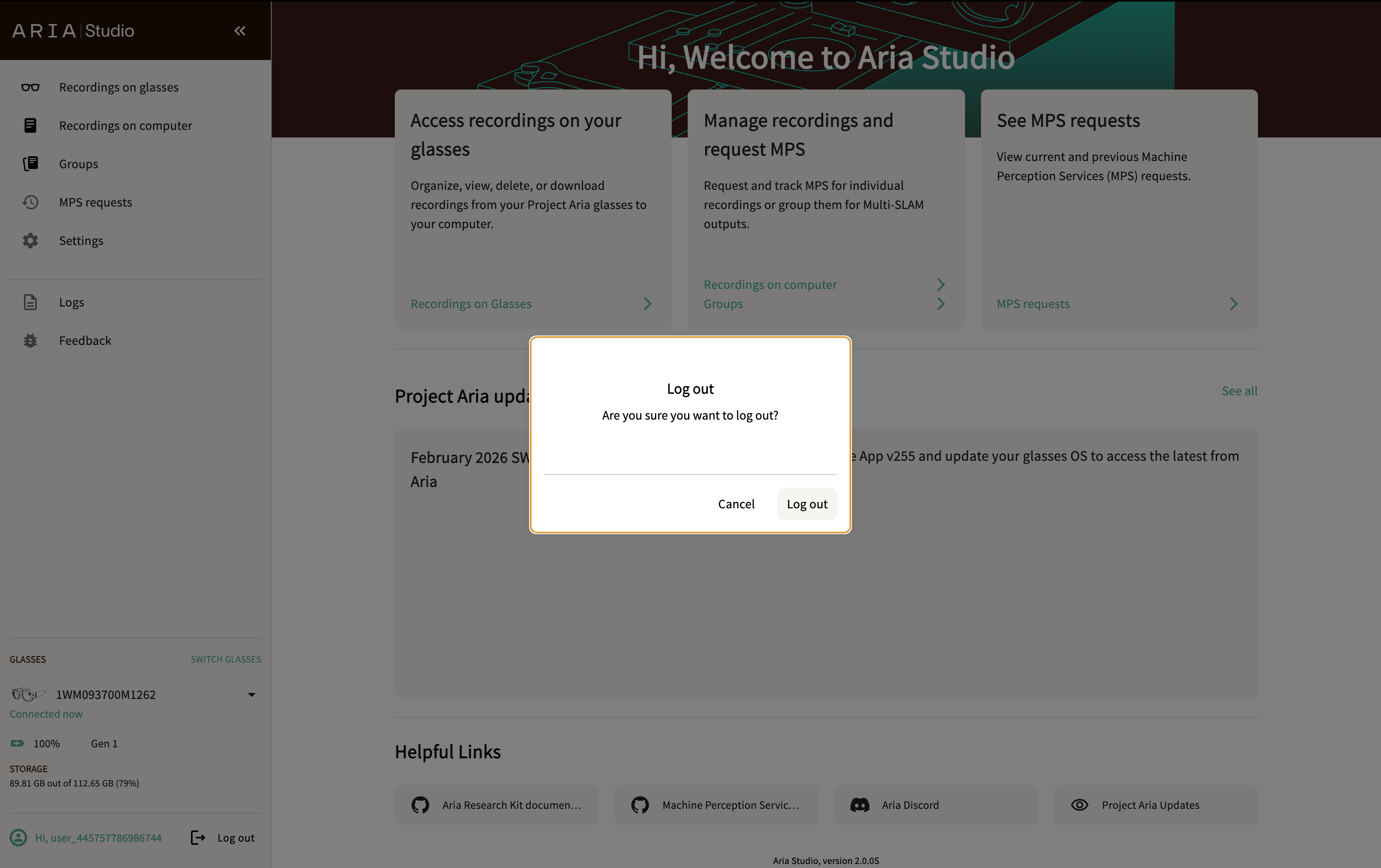
- Locate the User Info panel at the bottom of the sidebar.
- Select the Log out button.
- In the confirmation dialog, select Log out to confirm (or Cancel to stay logged in).
- You'll be returned to the User Type Selection screen.
What happens during logout
Logging out performs a complete cleanup:
- Server-side session is invalidated.
- Saved credentials are removed from the system keyring, the encrypted file (
~/.projectaria/auth_token.enc), and any legacy token files. - In-memory token is cleared.
- MPS request caches (individual and group) are reset.
- Recording profile preferences are cleared from local storage.
After logging out, you'll need to authenticate again to access any features that require login (MPS processing, update checks, announcements).
Session management
Protected features
Most Aria Studio features require authentication. If your session expires while the app is running, you'll be redirected to the login screen. The following features require an active session:
- Requesting or monitoring MPS processing
- Checking for app updates
- Viewing announcements
- Submitting bug reports or feedback
- Browsing the file explorer
Re-authentication
If your token expires server-side (typically after an extended period), Aria Studio will detect this on the next API call and redirect you to log in again. Saved credentials are cleared so that an expired token doesn't cause repeated failures.
Next steps
Troubleshooting
For authentication issues and solutions, see Aria Studio Troubleshooting.