Aria Studio Troubleshooting
This page provides troubleshooting support for issues relating to Aria Studio. It covers how to view application logs, submit feedback, common issues and solutions, and how to get further help.
Application logs
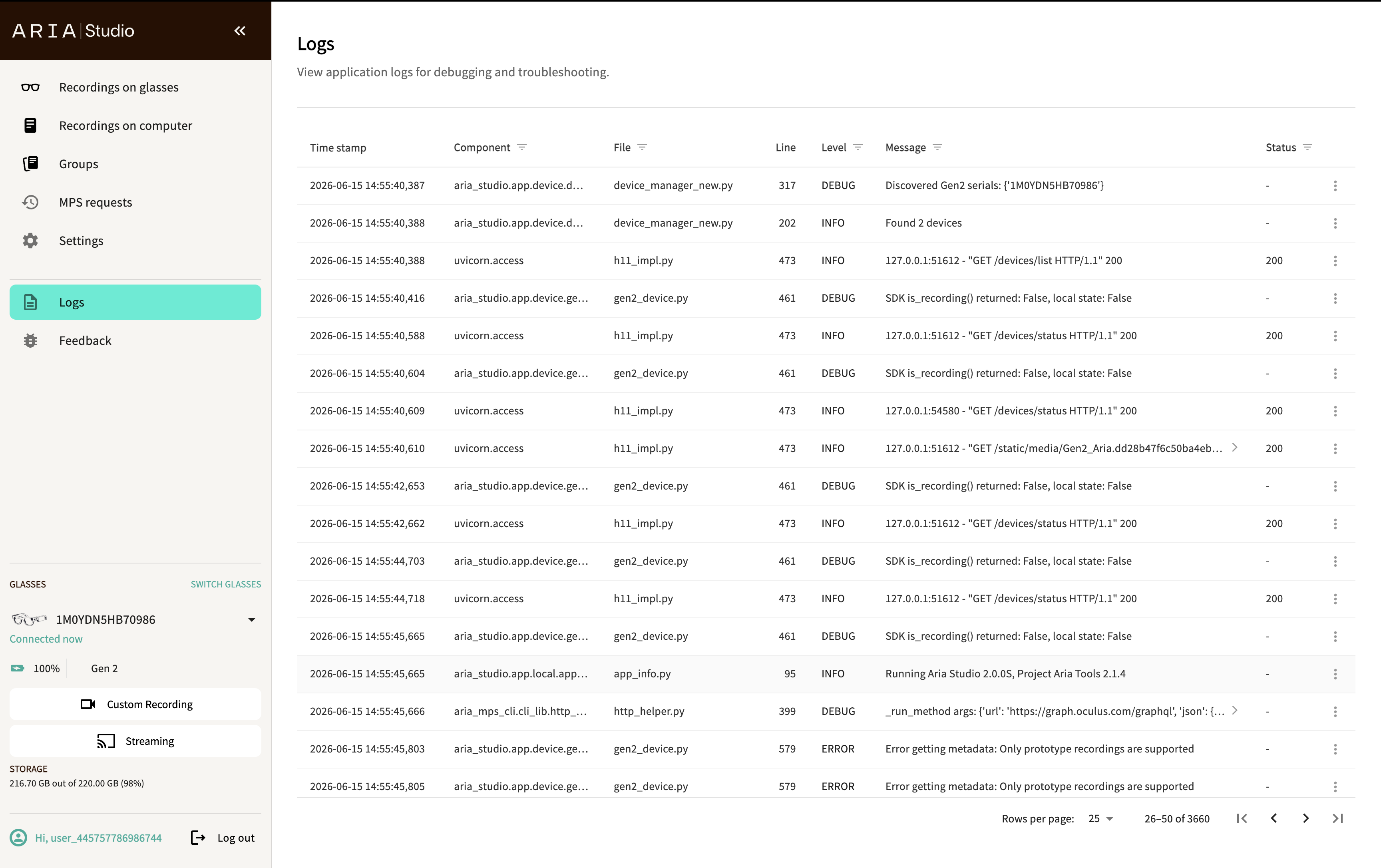
The Logs page provides a searchable, filterable view of Aria Studio's application logs for debugging and troubleshooting.
Log file location
Aria Studio writes logs to /tmp/logs/projectaria/log_YYYYMMDD_HHMMSS.log.
Log columns
Each log entry displays the following columns:
| Column | Description |
|---|---|
| Time stamp | When the log entry was recorded |
| Component | The system component that generated the log |
| File | Source code file |
| Line | Line number in the source file |
| Level | Log level (DEBUG, INFO, WARNING, ERROR) |
| Message | Log message content |
| Status | HTTP status code (if applicable) |
Working with logs
The Component, File, Level, Message, and Status column headers have a filter icon that lets you narrow log entries by that column's values.
Use the actions menu (three-dot icon) on individual entries for additional options. These options include:
- Copy message - Copies the raw log message to the clipboard.
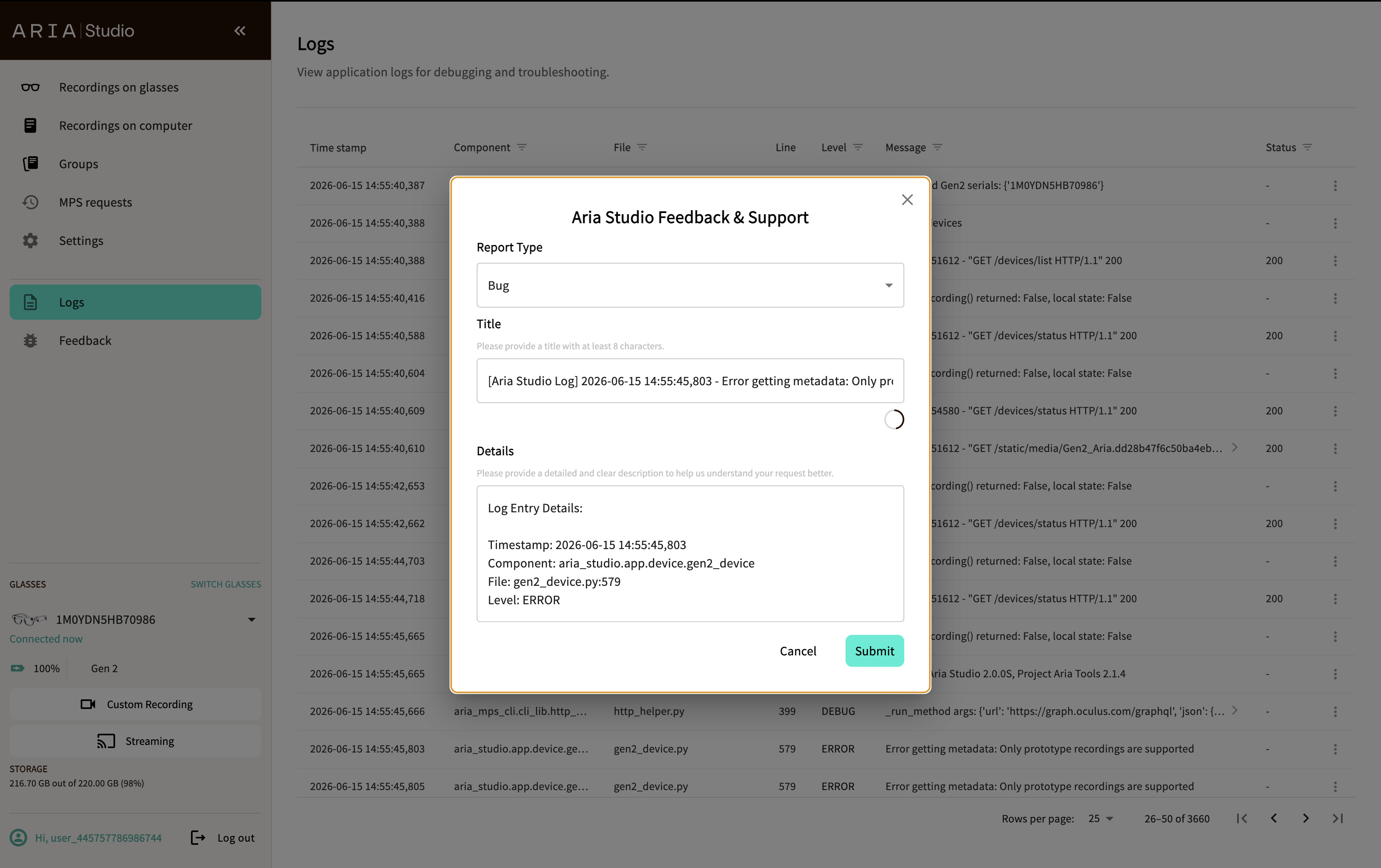
- File a bug - Opens the Aria Studio Feedback & Support dialog with the log message pre-populated.
Submit feedback
Select Feedback in the sidebar to open the Aria Studio Feedback & Support dialog. Fill in:
- Report Type — Select "Bug" for bug reports or other options for feature requests.
- Title — A short summary (at least 8 characters). When reporting from a log entry, the title is pre-populated with an
[Aria Studio Log]prefix, the entry's timestamp, and the log message. - Details — A detailed description to help the team understand your request. When reporting from a log entry, details are pre-populated with the log timestamp, component, file, and level.
Select Submit to send the report.
Common issues
Authentication
| Issue | Resolution |
|---|---|
| MMA login page doesn't open | Ensure your default browser is configured. Check that you're running on port 8000, or 8134. |
| MMA login times out | The SSO flow must complete within 5 minutes. Try again and complete authentication promptly. |
| "Incorrect username or password" (Gen 1) | Verify your credentials. Username should be your partner email or username without domain. |
| Auto-login fails on startup | Your saved token may have expired. Log in again to refresh it. |
| Login works in MPS CLI but not Aria Studio | Both share the same keyring. Try logging out of MPS CLI and logging in again through Aria Studio. |
| macOS: login issues | On some macOS versions, keyring access may require granting permission to the terminal or Python process. Check System Preferences > Security & Privacy. |
Device management
| Issue | Resolution |
|---|---|
| Gen 1 device not detected | Verify ADB is installed and on your PATH. Run adb devices in a terminal to confirm the device is visible. |
| Gen 2 device not detected | Try unplugging and reconnecting. Ensure the device is powered on. Use a USB data cable (not charge-only). |
| Authentication fails | Open the Companion App and check for pending pairing requests. Make sure the glasses are powered on and unlocked. |
| "Device mode is not supported" | The device may be in a mode that Aria Studio doesn't support. Check the device status in the Companion App. Ensure your device generation is supported on your operating system. |
| Device appears but can't be selected | The device may not be authenticated. Select Authenticate in the Switch Glasses dialog to pair it. |
| Multiple devices conflict | Only one device is active at a time. Switch between them using the Switch Glasses dialog. |
Recordings on glasses
| Issue | Resolution |
|---|---|
| "Device Not Connected" | Check that your USB cable is connected and the device is powered on. |
| No recordings appear | Verify the glasses have recordings. Try disconnecting and reconnecting. |
Live streaming
| Issue | Resolution |
|---|---|
| Streaming won't start | Ensure your glasses are connected and no other streaming session is active. |
| Viewer closes unexpectedly | Use the Open Viewer button to reopen without restarting the stream. |
| Poor data quality | Try switching from Wi-Fi to USB for more reliable data transfer. |
| "Prototype consent required" error | Accept the Prototype Mode consent dialog when prompted. |
MPS processing fails
| Issue | Resolution |
|---|---|
| VRS file corrupted | Run the VRS Health Check tool to validate your recording. |
| Upload keeps failing | Try increasing the retry count and wait time in Settings. |
| Server error | Check the Past MPS Requests page for the error code and try again later. |
Visualization issues
| Issue | Resolution |
|---|---|
| Rerun viewer doesn't open | Ensure Rerun is installed (pip install rerun-sdk). |
| Viewer shows stale data | Only one visualization runs at a time. Starting a new one replaces the previous. |
Application errors
| Issue | Resolution |
|---|---|
| "Port already in use" | Another instance of Aria Studio may be running. Close it or use --port to specify a different port. |
| App freezes during import | Large VRS files may take time. Check the import progress indicator. |
| Settings not saving | Ensure all fields pass validation (no red error messages) before selecting Save. |
Getting help
If you can't resolve an issue, go to the Support page for how to contact our team.