Device Authentication
Authenticate your Aria Gen 2 device with your PC to enable secure communication over USB. You only need to authenticate once per device-PC combination.
Prerequisites
- Client SDK installed and virtual environment activated
- Device paired with the Companion App (setup guide)
- Device connected to your PC via USB
Step 1: Verify Device Setup
After setting up the device with the Companion App, connect your device via USB and run the following command to ensure the device can be reached:
aria_doctor
This step opens the necessary ports on your PC for device discovery and configures your system to allow unblocked internet connection.
Step 2: Check Device Connection
Verify the device connection to the PC via USB network interface:
# Connect device to the computer and check if the device appears
aria_gen2 device list

# Expected output
[AriaGen2Cli:App][INFO]: 1M0YDB5H7B0020
If you cannot see your device listed in the terminal, please visit the troubleshooting page for help.
Step 3: Authenticate Device
Authenticate your device to this PC to start using the Client SDK:
# Authenticate device to connect with the PC
aria_gen2 auth pair

# Expected output
[AriaGen2SDK:DeviceClient][INFO]: Client hash is: f30a36a9f3842bd3fc16c75b525.... please check against the companion app pairing request
[AriaGen2Cli:App][INFO]: Waiting for authentication approval on your mobile Companion App...
[AriaGen2Cli:App][INFO]: Successfully authenticated the device
You will need to approve the authentication from your mobile Companion App to allow the connection, as shown here:
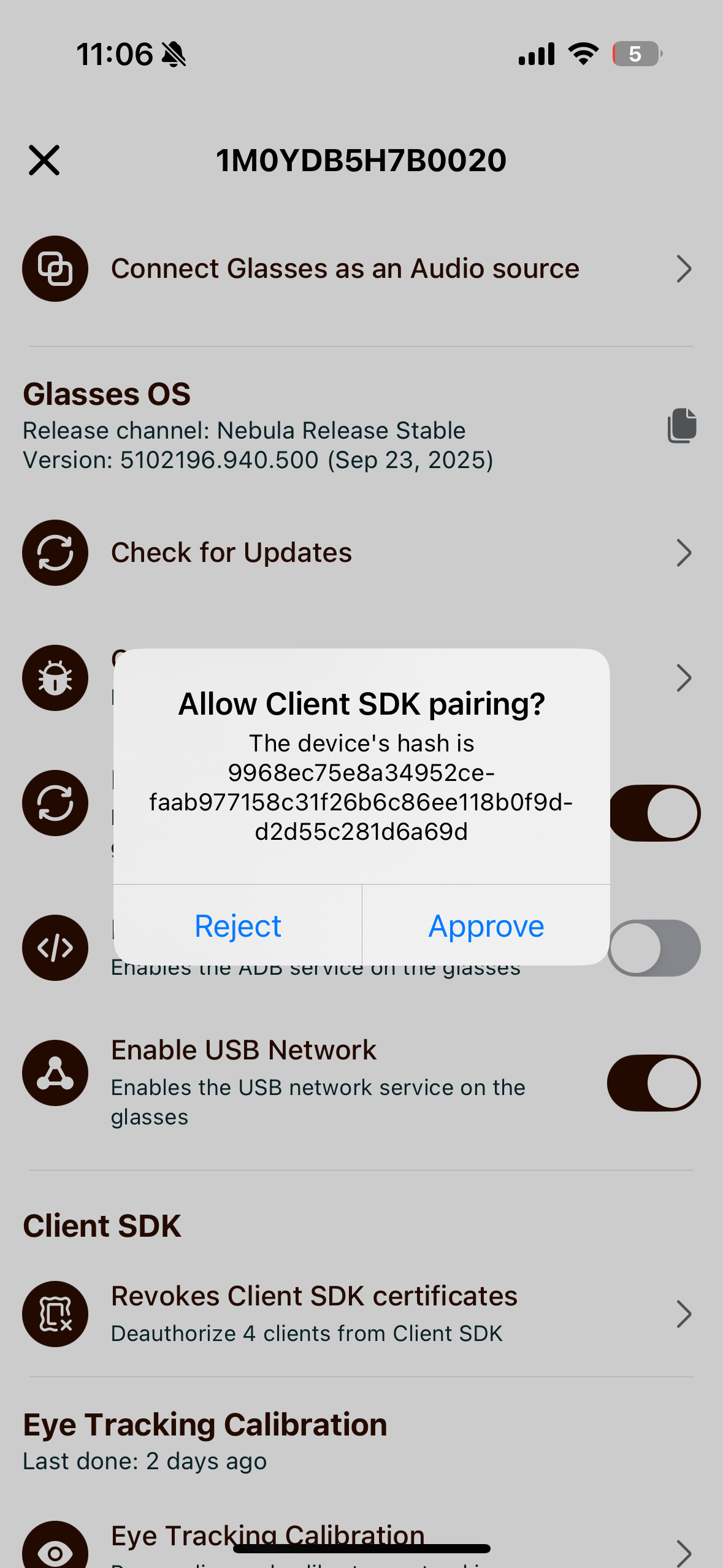
If you cannot see the authentication request in your Companion App, please visit the troubleshooting page for help.
Step 4: Verify Authentication
Once authenticated, you can check your authentication status using the command below:
# Check authentication status
aria_gen2 auth check

# Expected output
[AriaGen2Cli:App][INFO]: Setting up connection to device ...
[AriaGen2Cli:App][INFO]: Connected to device 1M0YDB5H7B0020
[AriaGen2Cli:App][INFO]: Device 1M0YDB5H7B0020 is successfully authenticated.
You only need to authenticate once per device and PC combination.
Common Errors
Device Not Detected
If your device is not showing up when running aria_gen2 device list:
- Run
aria_doctorto configure your system - Verify the device is discoverable via mDNS:
- On macOS:
dns-sd -B _recordingmanager._tcp - On Linux:
avahi-browse -r _recordingmanager._tcp(install withsudo apt install avahi-utilsif not available)
- On macOS:
- Check that USB Network is toggled ON in the Companion App
- Disable any active VPN connections
- Try a different USB port or cable (USB 3.0+ recommended)
Authentication Request Not Appearing
If you don't see the authentication request in the Companion App:
- Ensure the Companion App is running in the foreground
- Verify your mobile device has an active internet connection
- Check that the device is paired with the Companion App
- Retry with
aria_gen2 auth pair
For more detailed troubleshooting, visit the SDK Troubleshooting page.
Next Steps
- Start recording data from your device
- Learn about streaming for real-time data access
- Explore Python SDK examples for programmatic control