DTC Object Models
Overview
This page covers how to download the 3D object models associated with the Digital Twin Catalog (DTC) dataset, and briefly describe the data content and how to visualize the models.
Download the DTC Object Models
Step 0: install project_aria_tools package and create venv if not done before
Follow Step 0 to Step 4 in Getting Started
Step 1 : Signup and get the download links file
To use the downloader CLI, you need to download a file which contains all data URLs plus some metadata for the downloader script.
Visit Digital Twin Catalog on Project Aria Website and sign up.
Scroll down to the bottom of the page. Enter your email and select Access the Datasets.

Once you've selected Access the Datasets you'll be taken back to the top of the DTC page.
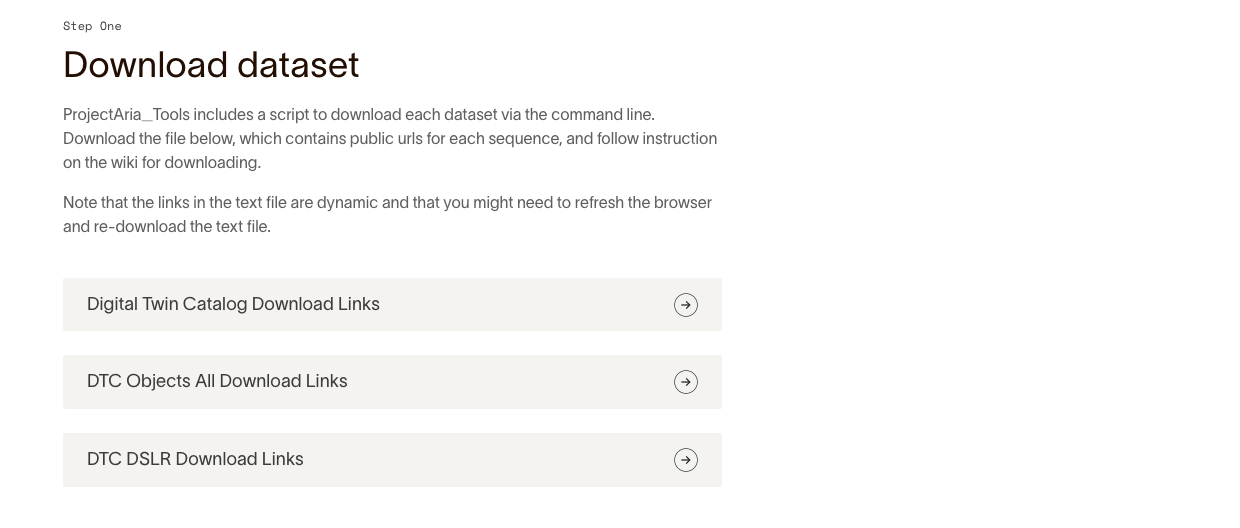
Scroll down the page to select the DTC Objects All Download Links link and download the file to the folder $HOME/Downloads.
Step 2 : Set up a folder for object models
mkdir -p $HOME/Documents/dtc_object_library
Step 3 : Download the object models via CLI:
To download all DTC models (~100GB), run the following command from your Python virtual environment:
dtc_object_downloader -c {PATH_TO_YOUR_DTC_OBJECT_CDN_FILE} -o $HOME/Documents/dtc_object_library
To download only a select subset of DTC models, run the following command from your Python virtual environment:
dtc_object_downloader -c {PATH_TO_YOUR_DTC_OBJECT_CDN_FILE} -o $HOME/Documents/dtc_object_library -l {SELECTED_OBJECT_NAMES}
You can retrieve object names from the DTC data providers using your downloaded sequence data, or have a look at the metadata.json file in your sequence data.
Troubleshooting
Check Project Aria Tools troubleshooting if you are having issues using this guide.
Object Model Data Format
When downloading the object models using dtc_object_downloader, each object will download into its own folder, named using the instance name of the object. Under each object folder, there will be three files as shown below.
|InstanceName1|
    ├──3d-asset.glb  # model file
    ├──CC_BY-SA.txt  # license file
    ├──metadata.json
|InstanceName2|
    {...}
All poses associated with the objects are stored in each sequence object pose data, not in the downloaded object data. For example code to learn how to load object models and their associated poses, refer to the visualizers in Tooling
Visualizing Object Models
The GLB files for each object model can be viewed using any off-the-shelf GLB viewer. For example, the open web browser based Babylon viewer can be used by dragging and dropping the GLB file.