Customizable Recording Profiles
The companion app allows you to copy and customize recording profiles. You can also view and edit customized recording profiles stored on your glasses.
Copy a Recording Profile
- Navigate to the Headset Details page by pressing on the Headset card at the top of the dashboard.
- Scroll down to find the Recording Profiles section.
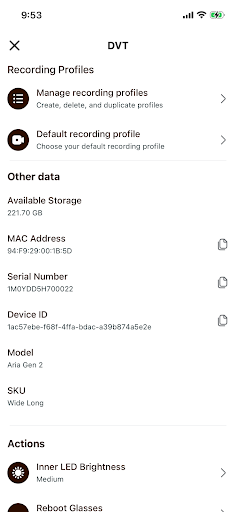
- Press Manage recording profiles.
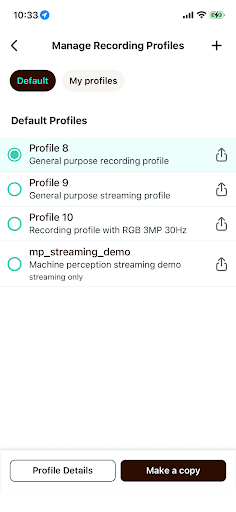
- Select a recording profile you want to make a copy of and press the Make a copy button at the bottom of the page.
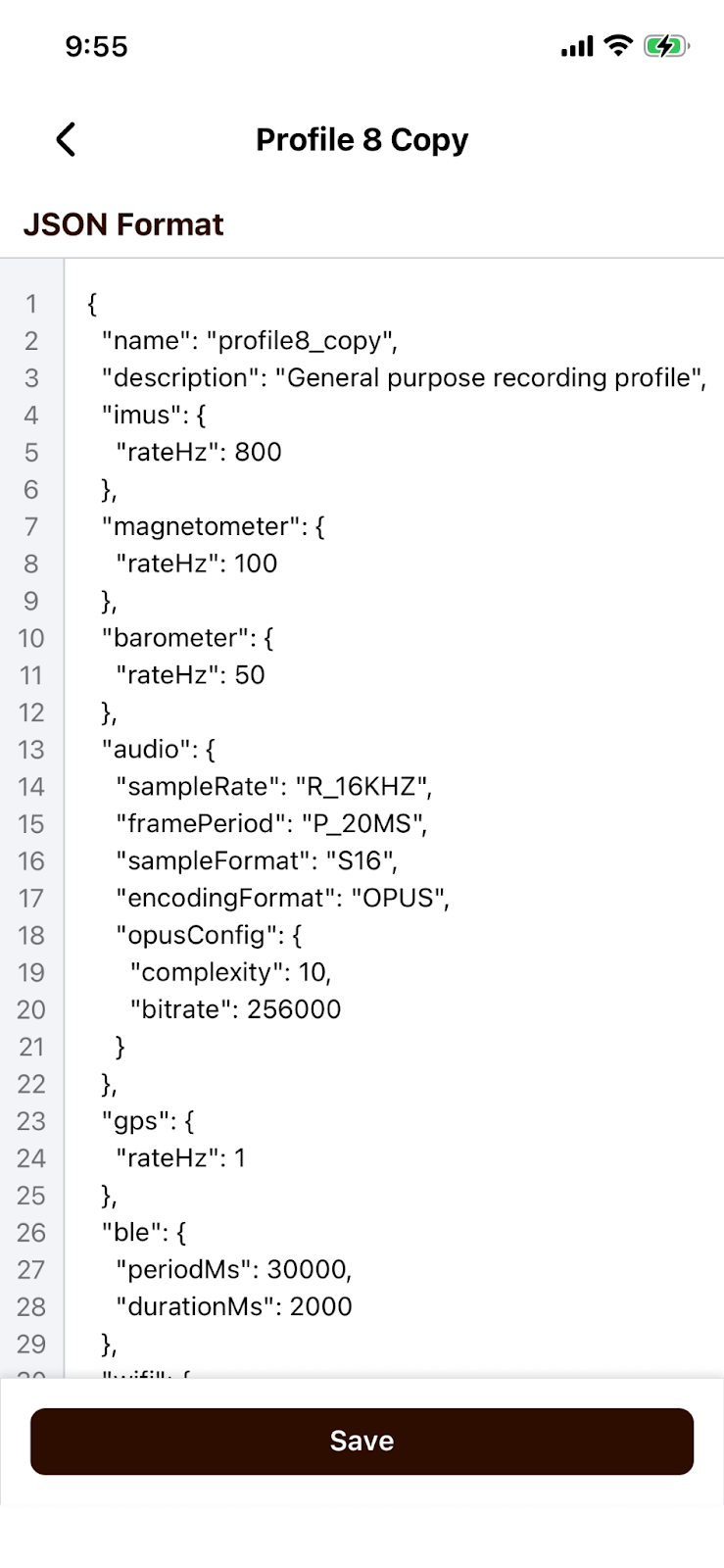
- This will take you to an editor screen where you can make any edit to the recording profile and either back out and discard any changes you've made or press the Save button at the bottom of the screen.
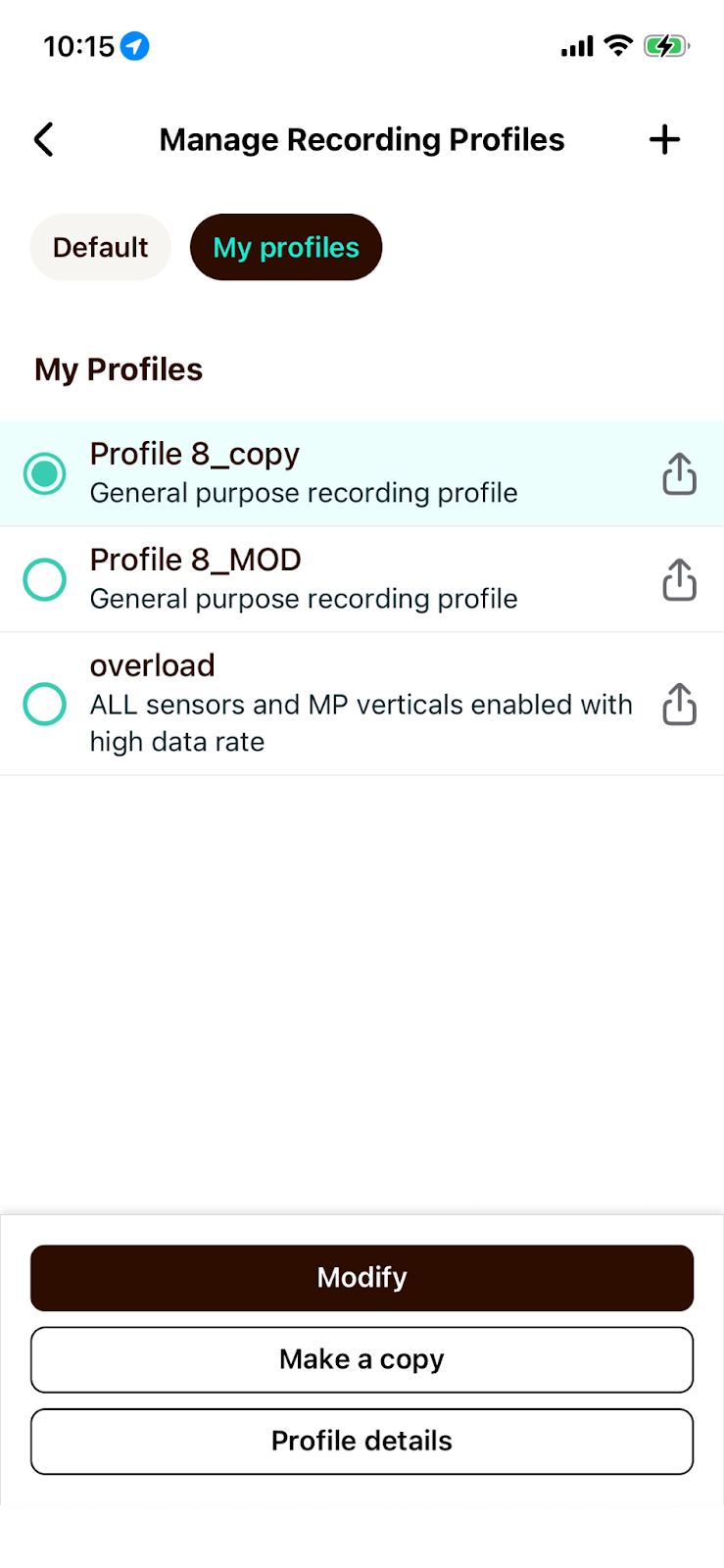
- When you save the customized recording profile you will be taken to the My profiles tab and will see your newly customized recording profile. From here you can inspect the details of the recording profile, make further changes, or copy the profile again to make more changes that are saved in a separate recording profile.
Share a Recording Profile
- Navigate to the Headset Details page by pressing on the Headset card at the top of the dashboard.
- Scroll down to find the Recording Profiles section.
- Press Manage recording profiles.
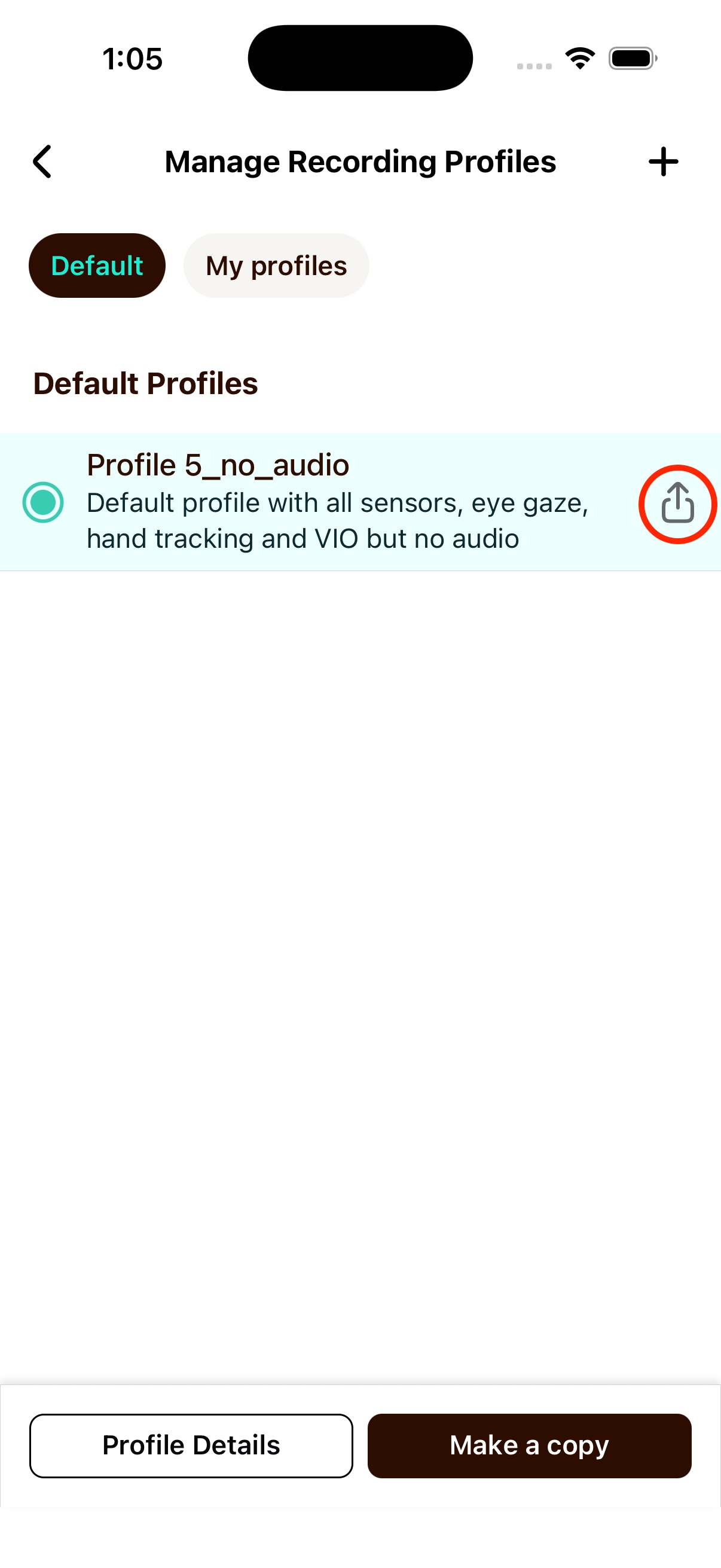
- Select a recording profile you want to share and press the share icon on the right side of the profile row.
- iOS
- Android
This will open a share dialog where you can select how you would like to share this recording profile, or copy the contents of the recording profile.
This will automatically copy the recording profile contents to your clipboard and then you can paste in a text file or messaging platform of your choice.
Create a New Recording Profile
- Navigate to the Headset Details page by pressing on the Headset card at the top of the dashboard.
- Scroll down to find the Recording Profiles section.
- Press Manage recording profiles.
- Press the "+" icon in the top right corner of the screen.
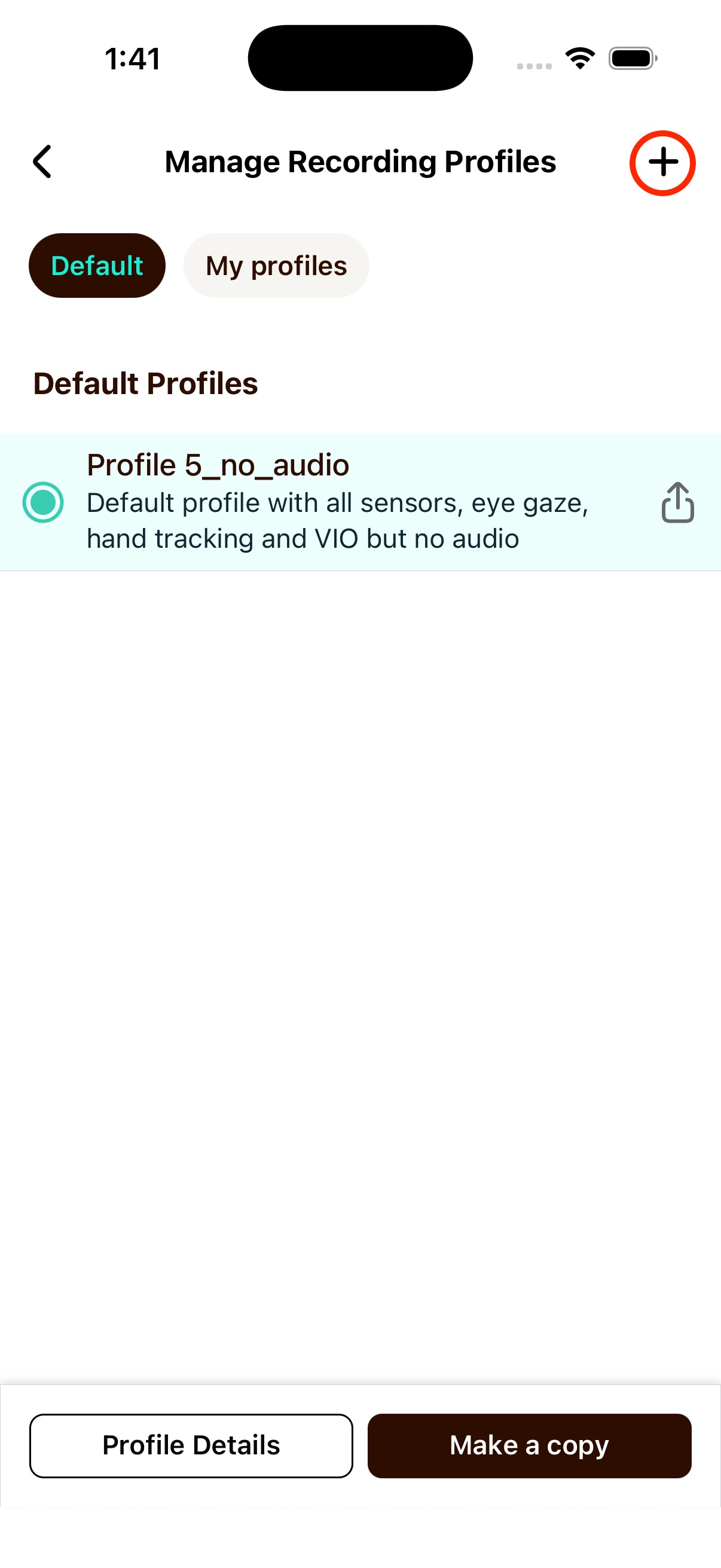
- This will take you to a blank editor screen where you can paste in a recording profile.
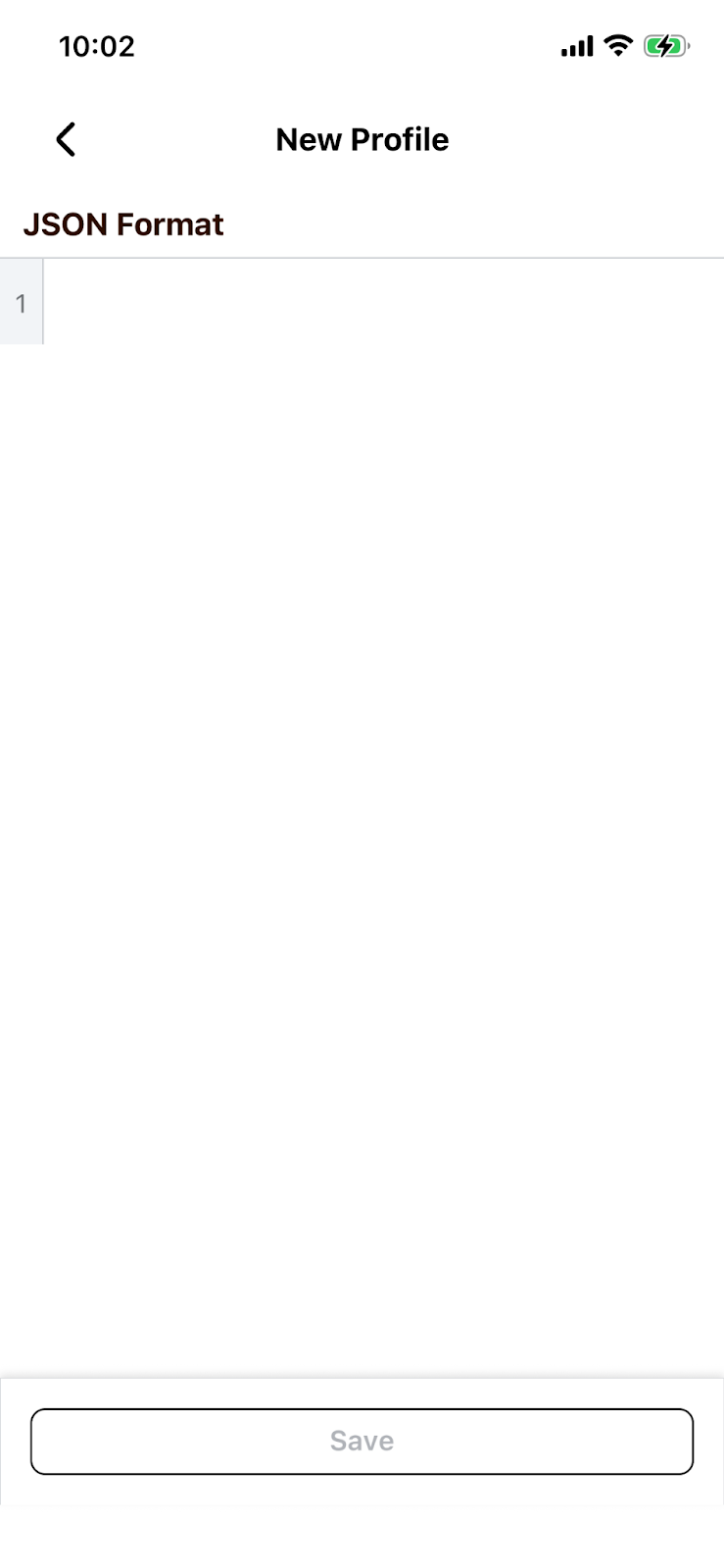
- After pasting in a recording profile, you can either discard any changes you've made or press the Save button at the bottom of the screen.
- When you save the pasted recording profile you will be taken to the My profiles tab and will see your newly customized recording profile. From here you can inspect the details of the recording profile, make further changes, or copy the profile again to make more changes that are saved in a separate recording profile.