Bluetooth Audio Pairing
Overview
Bluetooth Audio Pairing allows your Aria Gen 2 glasses to function as a Bluetooth audio device for your phone. You gain access to audio playback and media streaming through the glasses' built-in speakers and microphones.
Pairing Bluetooth Audio
Bluetooth Audio Pairing is offered in the initial setup flow when connecting to your glasses for the first time.
-
After naming your device, the Bluetooth Audio Pairing screen will appear.

-
Tap Connect to view the instructions.
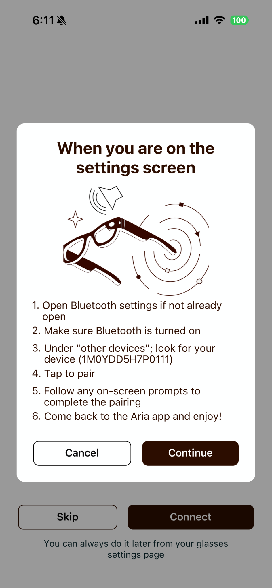
- Tap Cancel if you want to set up later. Pairing can be done from the Dashboard or Device Details screen.
-
Tap Continue to start the pairing process.
- Follow the platform-specific instructions that are shown in the setup screen, then return to the Aria app once you have connected to your glasses from your phone's native Bluetooth manager screen.
If pairing was skipped during setup, you can initiate pairing from device settings:
-
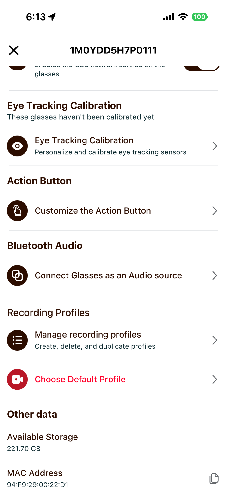
Navigate to the Device Details screen.
-
Scroll down to the Bluetooth Audio section.
-
Tap Connect Glasses as an Audio source.
-
Follow the on-screen instructions that are specific for your phone type.
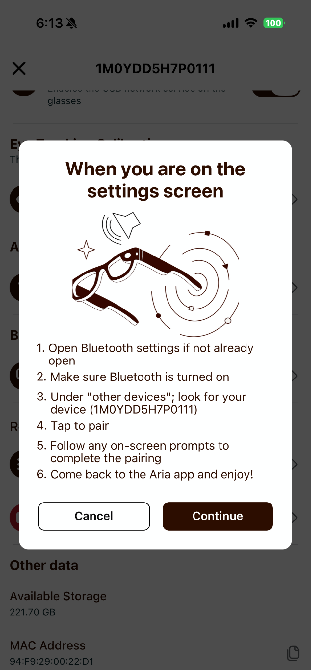
Note: Bluetooth Audio section will only be visible if your glasses are currently connected.
Completing the Pairing on Your Phone: Example for iOS
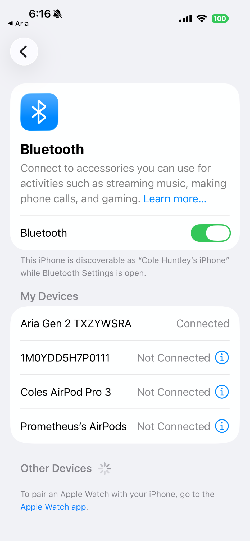
After tapping Connect in the Aria app, you'll be redirected to your phone's Bluetooth manager settings.
iOS
-
Navigate to your phone's Bluetooth settings manager screen if not already there.
-
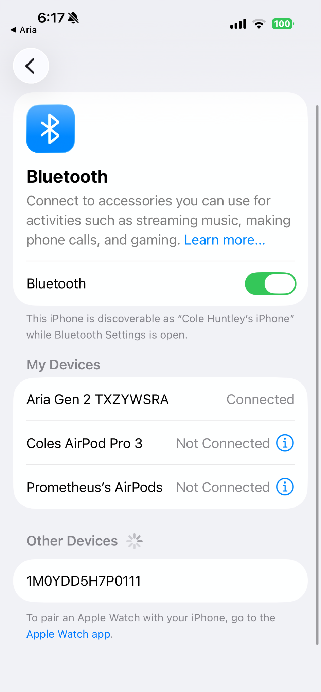
Ensure Bluetooth is enabled.
-
Under "Other Devices," find your glasses (named during setup).
-
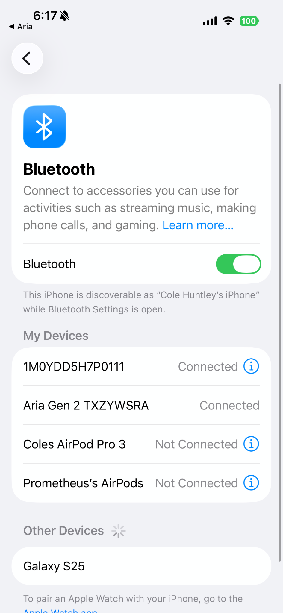
Tap your glasses name to pair.
-
Complete any on-screen prompts.
-
Return to the Aria app.
-
Confirm and monitor the glasses Bluetooth Audio status by finding the "BT Audio" pill at the top of the Device Details screen. This should be Green and say Connected.
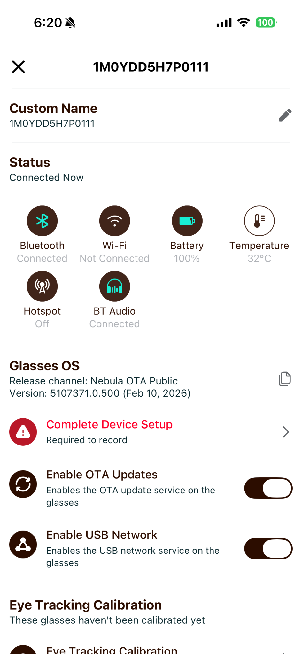
Note: There is a 30 second window from the time of initiating the pairing from the modal before the glasses will become undiscoverable. If this happens, return to the Aria app and start over.
Forgetting Paired Bluetooth Audio Devices
To remove Bluetooth Audio pairing:
-
Navigate to the Device Details screen.
-
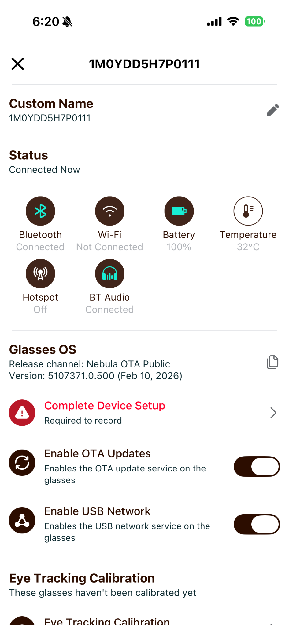
Find and Tap "BT Audio" status pill at the top of the screen.
-
Confirm you'd like to forget all paired Bluetooth Audio devices.
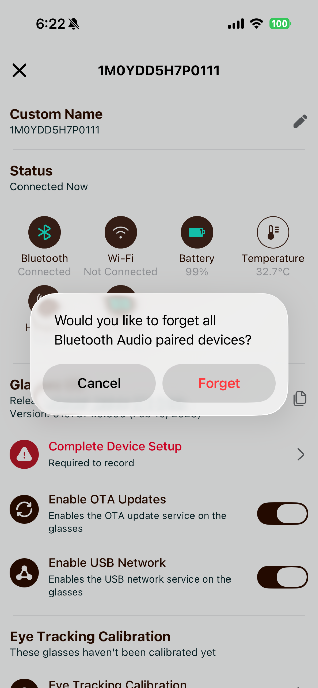
Note: This will not forget your glasses from your phone's settings. Be sure to navigate to your phone's Bluetooth manager settings and forget your glasses there as well.