Building with Visual Studio
Visual Studio provides a comfortable, integrated environment for building and working with Ocean. It offers IntelliSense, graphical debugging, project management, and one-click build-and-run for multiple target platforms.
On Windows, Visual Studio can build Ocean libraries and applications for:
- Windows - native desktop applications and libraries
- Android - mobile applications with native C++ support
- OpenXR (Meta Quest) - VR applications for Meta Quest headsets
Supported Visual Studio versions: Visual Studio 2022 and Visual Studio 2026.
Table of Contents
Building for Windows
Prerequisites
- Visual Studio 2022 or 2026 with the Desktop development with C++ workload
- Third-party libraries - built using Ocean's Python build script (see below)
Building Third-Party Libraries
Before opening the solution, build the required third-party libraries:
cd \path\to\ocean
python build/python/build_ocean_3rdparty.py
Tip: For shorter paths (avoiding Windows path length issues), use a custom output directory:
python build/python/build_ocean_3rdparty.py --output-dir C:\ocean_3rdparty
Once the build completes, make the installed libraries available to Ocean. The simplest approach is to create a symbolic link from ocean/3rdparty to the install directory:
cd \path\to\ocean
mklink /D 3rdparty \path\to\ocean_3rdparty\install
Alternatively, copy or move the install directory to ocean/3rdparty.
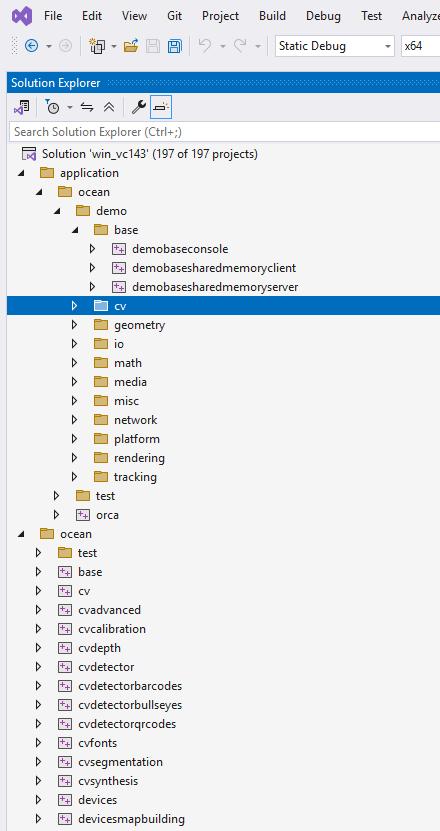
Opening the Solution
| Visual Studio Version | Solution File |
|---|---|
| Visual Studio 2022 | build/visual_studio/win/vc143/win_vc143.sln |
| Visual Studio 2026 | build/visual_studio/win/vc145/win_vc145.slnx |
Open the appropriate solution file in Visual Studio, select a build configuration (Debug or Release), choose a startup project, and build with Ctrl+Shift+B or run with F5.
Building for Android
Building Android applications with Visual Studio uses Ocean's Android Extension, which adds Android project types, Gradle integration, device deployment, and native C++ debugging directly inside Visual Studio.
Prerequisites
- Visual Studio 2022 with the Visual Studio extension development workload (also called the Visual Studio SDK)
- Android SDK and JDK 17-24 - see the extension README for installation details
Step 1: Build and Install the Ocean Android Extension
The extension source is located at build/visual_studio/extensions/vc143/android/.
- Open
build/visual_studio/extensions/vc143/android/OceanAndroidExtension.slnin Visual Studio - Set the configuration to Release
- Build the solution (
Ctrl+Shift+B) - Navigate to
bin\extensions\android\release\and double-clickOceanAndroidExtension.vsixto install it - Start Visual Studio once and close it again - this allows the extension to initialize and write its registry entries
Step 2: Install the OceanNDK Application Type
Open PowerShell as Administrator and run:
cd \path\to\ocean\build\visual_studio\extensions\vc143\android\scripts
.\InstallOceanNDKToolset.ps1
This installs the OceanNDK Application Type into Visual Studio's MSBuild directories, enabling native C++ Android projects to load.
Step 3: Build and Run an Android App
- Open the Android solution:
build/visual_studio/android/vc143/android_vc143.sln
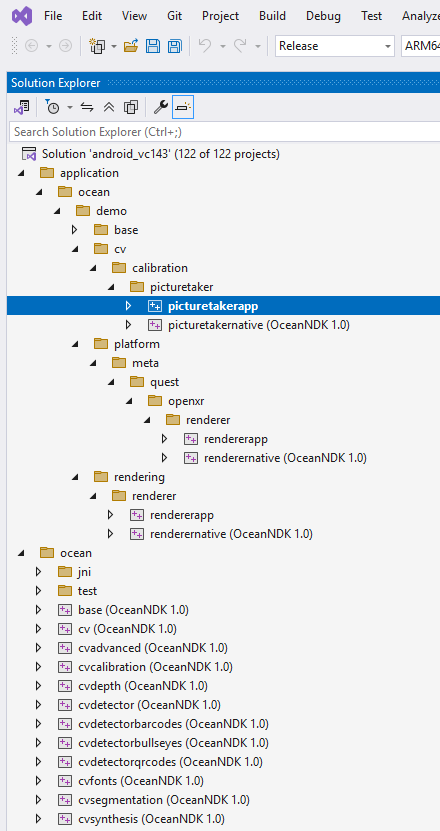
- In Solution Explorer, right-click the consoleapp project and select Set as Startup Project
- Set the build configuration to Debug
- Connect an Android phone via USB (with USB debugging enabled)
- Press
F5(Start Debugging) to build, deploy, and run the app
Note: For detailed configuration options (SDK paths, NDK detection, JDK setup, debugging, and troubleshooting), see the full Ocean Android Extension README.
Building for OpenXR (Meta Quest)
Ocean's Android solution also includes OpenXR projects targeting Meta Quest headsets. The same Visual Studio Android workflow applies - the OpenXR projects build as Android applications with additional Quest/OpenXR dependencies.
Prerequisites
Follow the same setup as Building for Android above, plus:
- Meta Quest in Developer Mode - see Mobile Device Setup
- Oculus (OVR) Platform SDK (optional, required by some demos) - see Building for Meta Quest for details
Building and Running
- Open
build/visual_studio/android/vc143/android_vc143.sln - Select an OpenXR project as the startup project
- Connect your Quest headset via USB
- Press
F5to build, deploy, and run
For command-line and Gradle-based Quest builds, see Building for Meta Quest.
This documentation is also available on GitHub.